Quick answer
Quick answer
To fax from Windows without a modem, save your document as a PDF or another supported file and upload it through an online fax website. Enter the recipient's fax number and your notification email, review the pages and checkout total, then send and track the final result. The browser workflow uses your internet connection.
What to get right
- A browser-based fax send does not require a fax modem or telephone line on your PC.
- Microsoft Print to PDF prepares a file; it does not send a fax.
- Download cloud files fully before choosing them for upload.
- Review scanned pages for missing backs, rotation, and faint text.
Choose an internet fax workflow for your PC
If your task is to send a file from a Windows laptop or desktop, you can prepare that file locally and upload it to an online fax service. The service transmits it to the recipient's fax number. You do not need to attach a telephone line or buy a fax modem for this workflow.
Keep the destination details handy before starting. Confirm the fax number with the receiving department and check whether its instructions require a reference number, signed form, or cover page. A general office telephone number and a dedicated fax number may look similar, so do not assume they are interchangeable.
Create a readable file before opening the send form
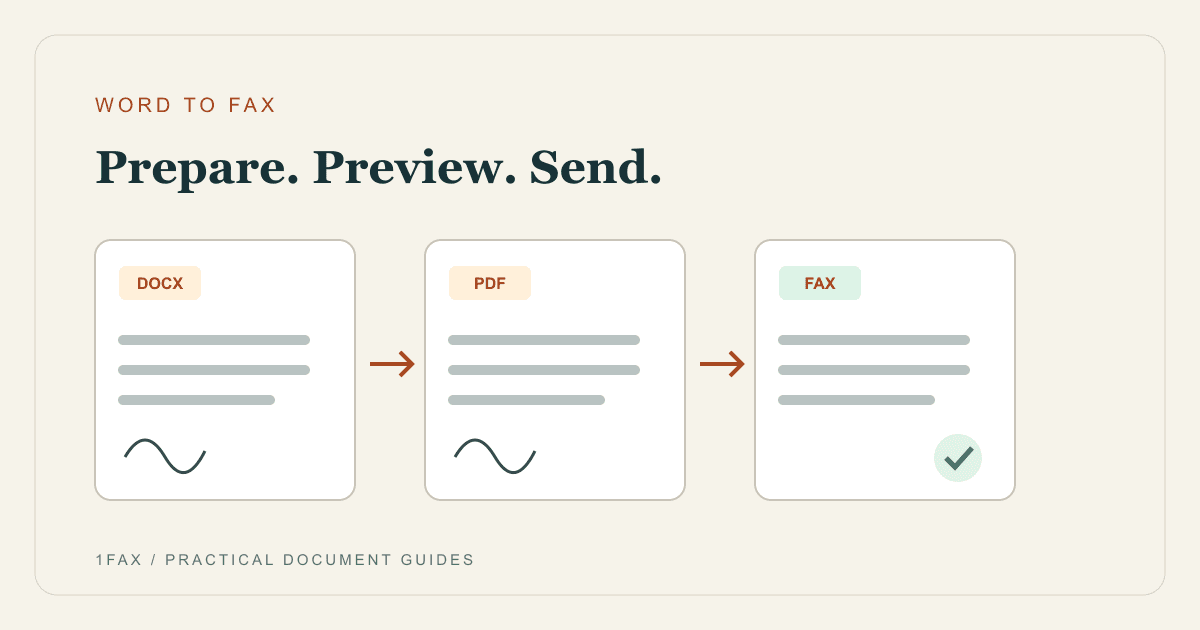
The 1Fax website supports PDF, DOCX, PNG, and JPG. If your finished document is already a PDF, open it and inspect it directly. If it is in Word, Microsoft provides PDF export through Save As or Save a Copy, with options for page ranges and markup.
A PDF copy is useful when page layout matters. Keep the editable original, then review the exported copy for tables, signatures, and page breaks. If the recipient asked for selected pages, confirm the final file contains those pages rather than the whole working document. Our Word-to-fax guide covers this preparation step.
| What you have | What to upload | Common issue to catch |
|---|---|---|
| Finished PDF | The original PDF | Wrong page range or an old version |
| Word file | DOCX or an exported PDF | Comments or tracked changes included |
| Spreadsheet or presentation | A checked PDF export | Tiny cells or slides split across pages |
| Paper form | A scan saved in a supported format | Missing reverse sides or clipped edges |
Use Print to PDF when that fits your application
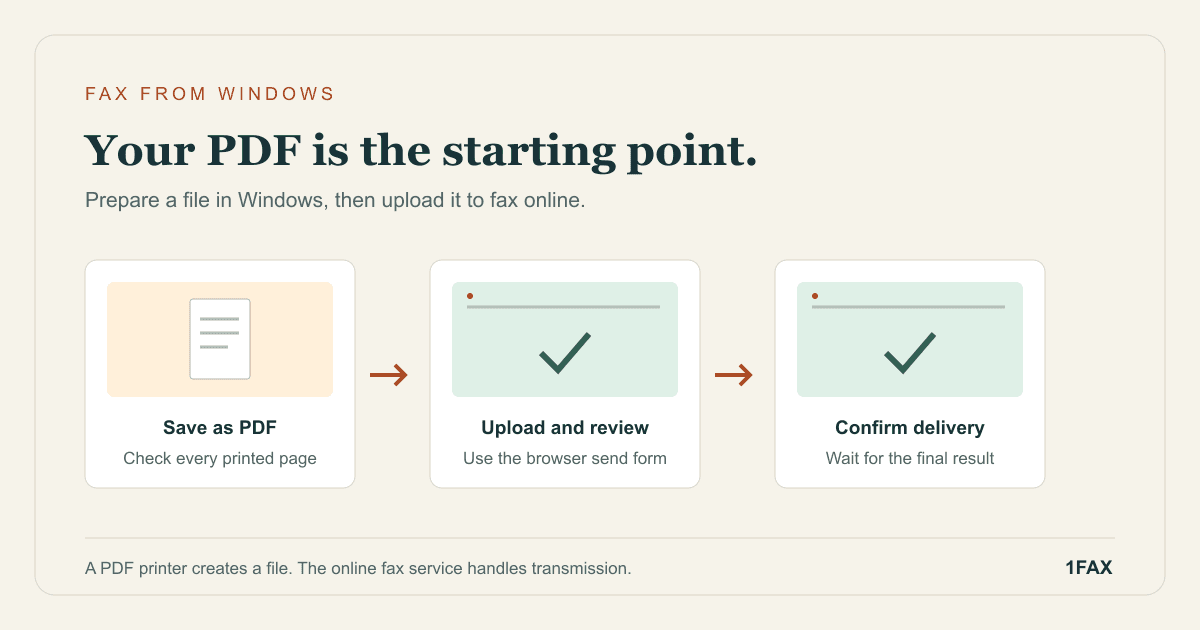
Microsoft documents a Print to PDF route in Word: open the print dialog, choose Microsoft Print to PDF, and save the output as a file. Other applications may offer their own PDF export or Save as PDF destination. Use the option available in the app you are working in.
Read the print preview before saving. Set the intended orientation, page range, and scale, especially for wide tables. Then open the saved file to check the actual result. This creates an uploadable document; selecting a PDF printer does not send anything to the recipient's fax number.
- Save the output in a folder you can find from the browser's file picker.
- Give the final copy a distinctive name instead of overwriting several drafts.
- Check that small text is readable at normal viewing size.
- If PDF output is unavailable, use the application's supported export option.
Send when ready
Your final PDF can go straight from browser to fax.
No fax machine or monthly plan. Verify the number, review the page count, and keep the delivery status.
Scan paper documents before uploading
Microsoft's Windows Scan guidance explains how to select a scanner, scan settings, and a save location. The available source and formats depend on the device. Check the saved output instead of assuming that loading several sheets captured every page or both sides.
For a two-sided application, compare the scan against the paper copy side by side. Rotate any upside-down backs and put the pages in reading order. A clean scan should preserve text near the edges, checkboxes, dates, and signatures. The double-sided fax guide gives a page-order example you can use.
Upload, check the destination, and review the total
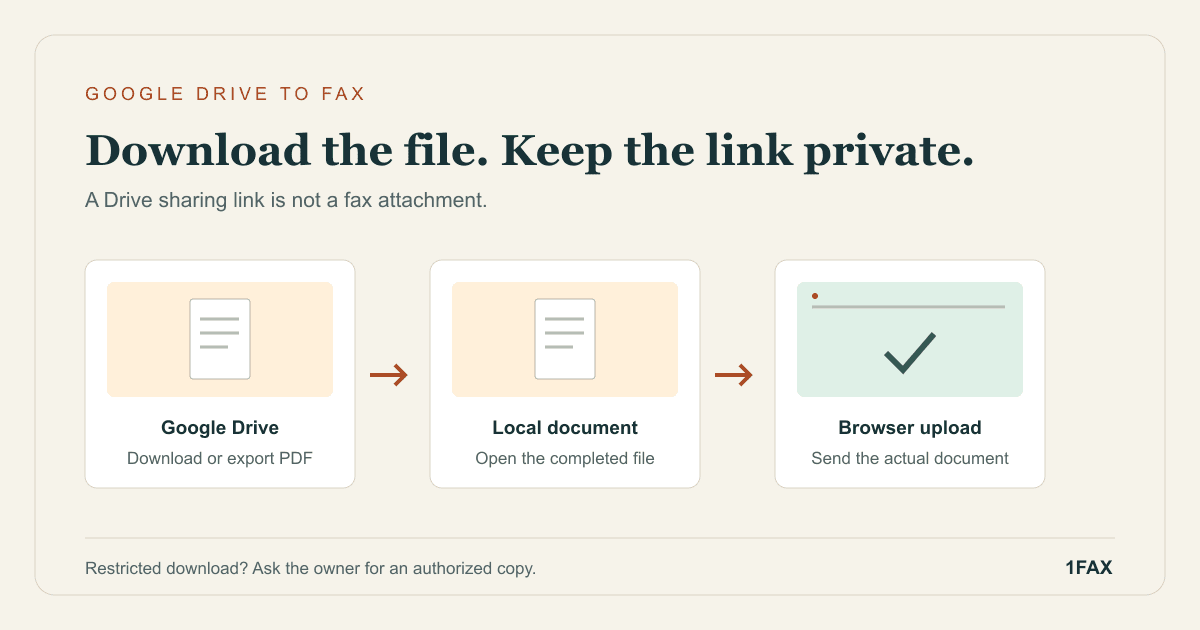
Open the 1Fax send form in your browser, enter your email and the confirmed fax number, and select the final document. If it lives in cloud storage, make sure you have the actual downloaded file. A browser shortcut, ZIP archive, or cloud-document pointer is not a supported fax attachment.
Check the preview and detected total pages, including any cover sheet. For domestic sends, an eligible one-page fax can use the free offer; other sends cost $1 for up to two total pages and $0.50 for each additional page. Confirm the displayed total for your specific destination and options before authorizing payment. Paid sends are captured only after successful delivery.
Track the job and solve the error you actually see
Once the submission is accepted, follow its status to a final result. A document upload and a fax delivery are separate steps. Keep the fax reference and the exact file you sent so you can explain which packet belongs to which transmission.
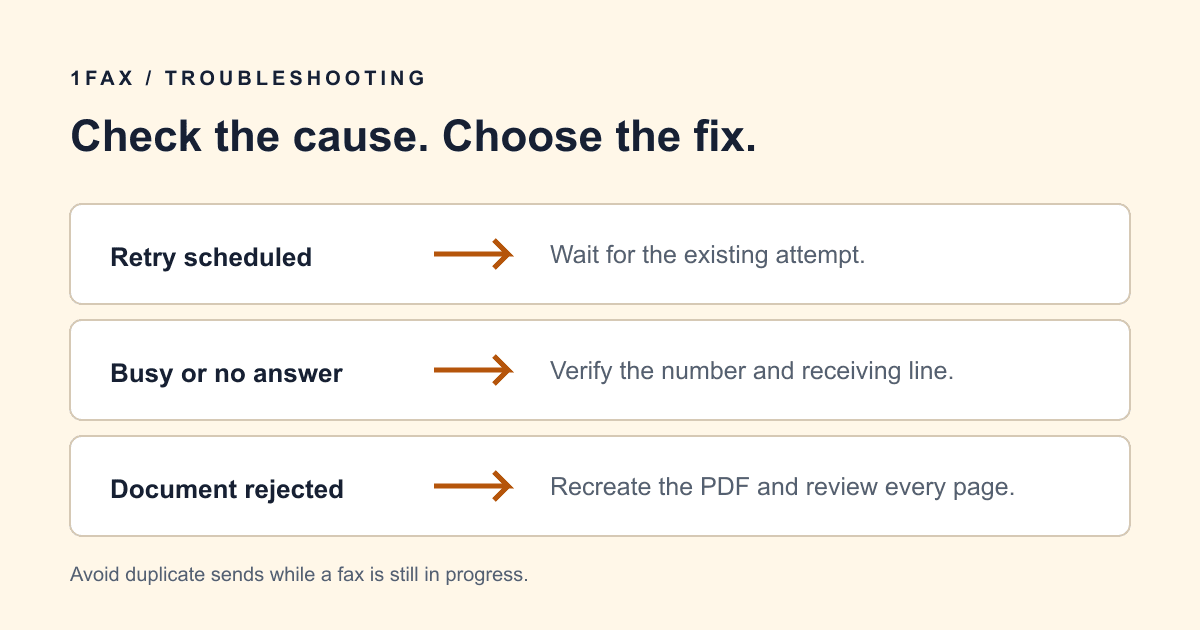
If you cannot upload, inspect the file format, whether it opens normally, and whether its download finished. If the upload works but transmission fails, inspect the fax error and reconfirm the recipient's number or line availability. The fax troubleshooting guide separates these cases so you can avoid submitting duplicate jobs without fixing the cause.
Research notes
Official sources used for this guide
Agency, healthcare, and provider instructions can change. Recheck the linked source and the document in front of you before transmitting.
- 01
- 02
- 03Install and use a scanner in Windows (opens in a new tab)
Microsoft Support
Common questions
Frequently asked questions
Can I send a fax from Windows 11 without a phone line?
Yes. Use an online fax service through your browser with a supported document and internet connection. The service handles the outbound transmission to the fax number.
Does Microsoft Print to PDF send my fax?
No. It saves printable content as a PDF file. You still need to upload that PDF and submit it through a fax service to transmit it.
Can I fax a document stored in OneDrive or Google Drive?
Download a supported copy, open it to confirm the contents, and upload that file. For Google Docs, export a PDF first; the Google Drive fax guide explains the difference between a document and its sharing link.
In summary
Key takeaway
Prepare a clear supported file on your Windows PC, inspect its pages, and upload it through the browser. The most useful checks happen before sending: the right document, the right destination, and the right total page count.