Quick answer
Quick answer
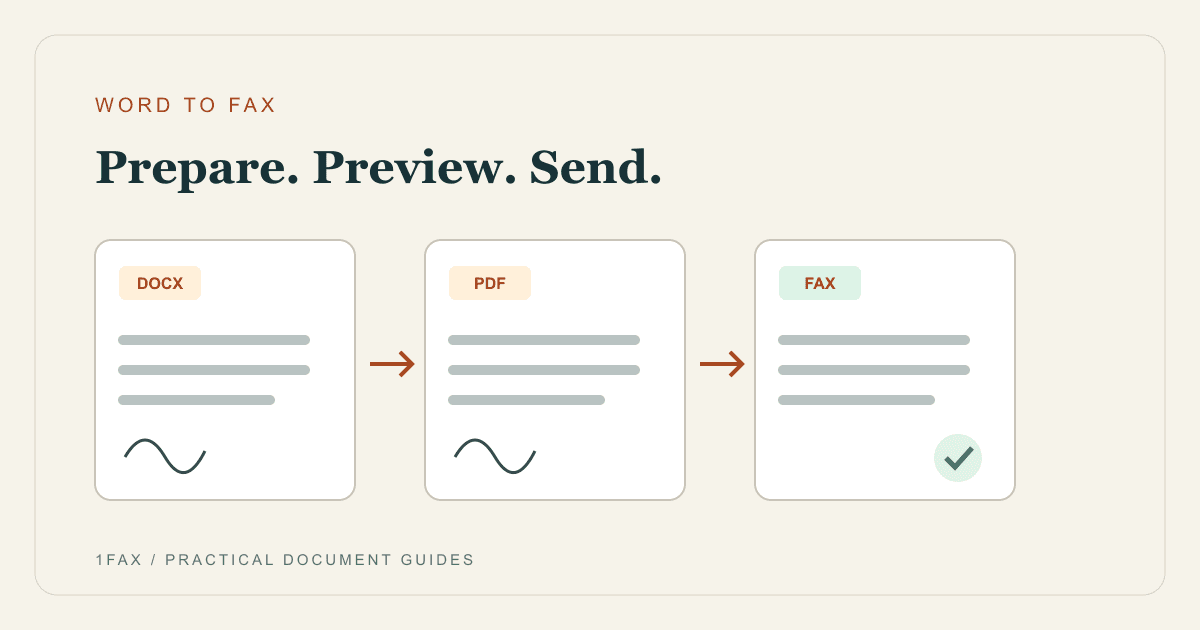
You can upload a DOCX file to the 1Fax website or save the Word document as a PDF first. Open the final file, check page breaks and comments, enter the recipient's confirmed fax number, and review the detected page count before sending. Keep the delivery status with a copy of the file you sent.
What to get right
- DOCX is supported on the website; export an older .doc file to PDF first.
- Preview the final file rather than assuming it matches your editing view.
- A cover page adds to the number of pages transmitted.
- A Word file does not become a fax until you send it through a fax service.
Choose DOCX or PDF before uploading
Start with the document the recipient actually needs: a completed application, a letter, or a signed form. A fax receiver receives page images, not an editable Word attachment. The important question is whether every page looks correct when rendered.
The 1Fax website accepts DOCX. PDF is another option when you want to inspect a fixed page layout before upload, especially for forms with tables, headers, signatures, or carefully positioned text. An older .doc file should be exported to a supported format first.
| Your starting file | Preparation | What to inspect |
|---|---|---|
| DOCX | Upload directly or export a PDF | Page breaks, tables, and the final page count |
| Older .doc | Open in Word and export a PDF | Formatting after conversion |
| Password-protected document | Ask its owner for an approved readable copy | That the file opens without a password prompt |
Export a PDF from Word
Microsoft documents PDF export through Word's Save As or Save a Copy options. Select PDF as the file type and save a separate copy. In the export options, check the page range and whether the output includes markup. Exact menu labels depend on the Word version.
Close the export dialog and open the saved PDF itself. Read the last line on each page and inspect any signature or attachment pages. The exported file, rather than the editable original, is the version you will upload.
- Keep the original Word document for later edits.
- Confirm the PDF contains the intended pages only.
- Check that comments or tracked changes are not visible unless the recipient requested them.
- Make sure tables and text are not clipped at the page edge.
Send the document through the website
Open the one-page send form, enter your email and the fax number confirmed by the recipient, and attach the DOCX or PDF. If you have several supporting files, prepare a single ordered packet or check the attachment sequence carefully.
Review the detected page count and the preview. Add a cover page only when needed, because it becomes another transmitted page. Check the displayed total before authorizing a paid fax; an eligible one-page domestic fax can use the free offer.
- Verify the country and destination number.
- Use the final document, not an earlier draft.
- Review every page in the preview.
- Send, then monitor the live status until a final result appears.
Send when ready
Your final PDF can go straight from browser to fax.
No fax machine or monthly plan. Verify the number, review the page count, and keep the delivery status.
Fix layout problems before sending again
If the preview shows an extra blank page, look for a trailing page break or empty paragraph in the source document. If a table spills onto another page, adjust the source layout and export a new PDF. Recheck the entire packet after the change.
Do not repeatedly submit a file whose preview is already wrong. A clean source file makes troubleshooting easier and avoids asking the receiver to interpret missing columns, cropped text, or a detached signature page.
Keep the file and its delivery result together
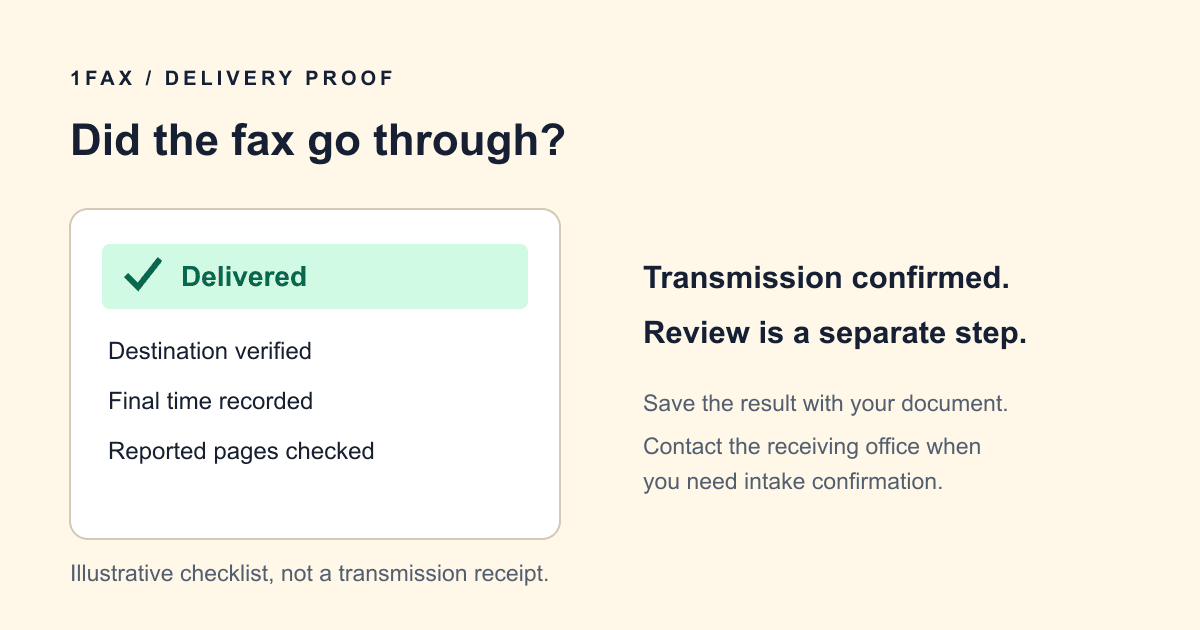
Save a local copy of the exact document you sent and keep its transmission result. A delivered status indicates acceptance by the receiving fax system; it does not establish that someone read the document or approved its contents.
If the recipient cannot locate it, provide the approximate send time and page count through their normal contact channel. Confirm routing before starting another transmission.
Research notes
Official sources used for this guide
Agency, healthcare, and provider instructions can change. Recheck the linked source and the document in front of you before transmitting.
- 01Save or convert an Office document to PDF (opens in a new tab)
Microsoft Support
Common questions
Frequently asked questions
Can I fax directly from Microsoft Word?
This workflow uses Word to prepare the document and 1Fax to transmit it. Save a DOCX or PDF, then upload it to the website; no Word fax add-in is required.
Do I need to print a Word document before faxing?
No. A supported DOCX or exported PDF can be uploaded directly. Print only if you need to complete a paper-only step required by the recipient.
Will comments and tracked changes appear in the fax?
They may appear if they are included in the rendered or exported file. Review your output settings and open the final file before uploading.
In summary
Key takeaway
Choose a supported file, inspect its final layout, and send only after the preview and page count look right. Exporting to PDF is useful when you want an additional layout check before faxing a Word document.