Quick answer
Quick answer
To fax a double-sided document online, scan or photograph every required side, arrange the images in reading order, and upload the completed PDF or supported images. One sheet with content on both sides becomes two fax pages. Check that no backs are missing or upside down, then review the total pages, destination, and price before sending.
What to get right
- Count the sides that need to be transmitted, not just the sheets of paper.
- A scanner's two-sided printing feature does not establish two-sided scanning support.
- Verify the back of each sheet in the final file before uploading.
- Online faxing preserves the page sequence; recipient printing settings determine paper output.
Count document sides before you scan
Start by turning over every sheet. A signature, consent statement, or continuation of a question can appear on the reverse side even when the front looks complete. Make a simple page inventory so you know what the final file should contain.
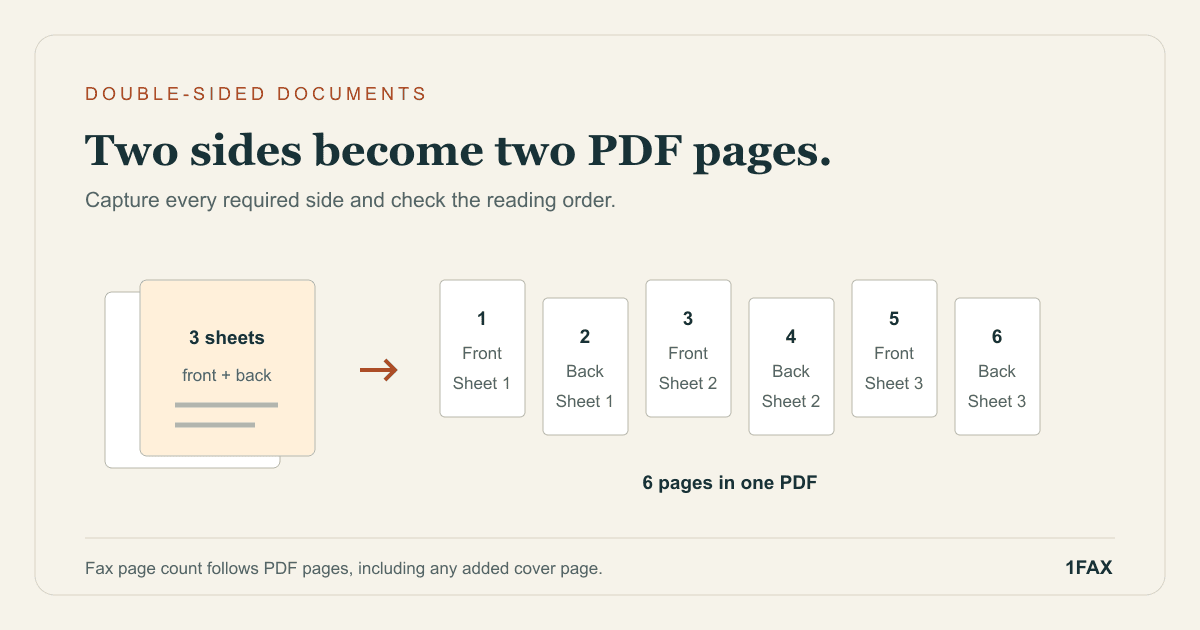
For an online fax, think in page images rather than physical sheets. Three sheets printed on both sides usually produce six document pages if all six sides are required. Add one more if you include a cover sheet. If the recipient's instructions require an entire form, do not omit a side just because it appears to contain instructions rather than fields.
| Original packet | Document pages to check | With one cover page |
|---|---|---|
| One sheet, both sides required | 2 | 3 total pages |
| Three sheets, both sides required | 6 | 7 total pages |
| Two-sided form plus one single-sided attachment | 3 | 4 total pages |
| A genuinely blank reverse side | Check recipient instructions before excluding it | Count the pages actually transmitted |
Use duplex scanning only when your model supports it
Check the scanner or multifunction printer's manual for two-sided scanning support. The ability to print on both sides does not tell you whether its document feeder scans both sides. Brother's instructions for supported models require selecting a two-sided scan format before faxing and choosing the appropriate long-edge or short-edge layout.
If you are scanning to a file, use the scanning options available for your particular model, then inspect the result. Test a single two-sided sheet before processing a large packet. Confirm that the output contains both sides and that the reverse is upright before trusting the setting for the remaining sheets.
Capture both sides manually when needed
A flatbed scanner or phone camera can capture each side separately. Work through the packet in a deliberate order: sheet one front, sheet one back, sheet two front, sheet two back. This is easier to verify than scanning all fronts and later trying to match a reversed stack of backs.
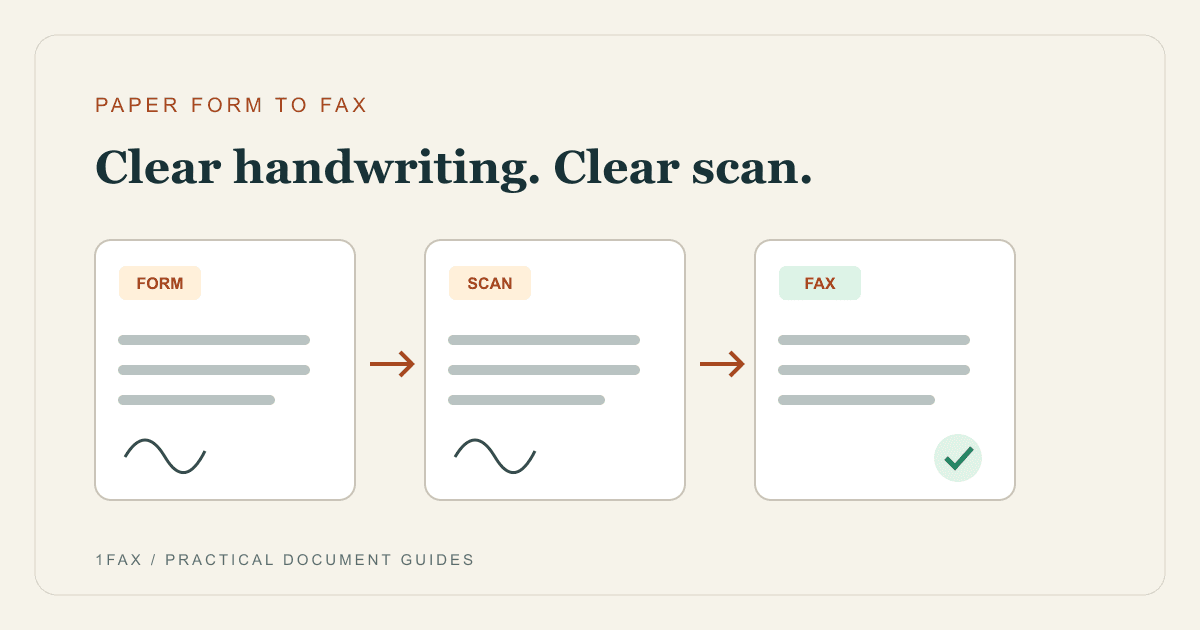
Place each side flat, include the full page edges, and keep the lighting consistent. Turn the paper instead of accepting a backward or upside-down image. For handwriting and signatures, check contrast and focus at normal viewing size; the handwritten-form fax guide covers the details that are easy to lose in a scan.
- Use a temporary sequence such as 01-front, 02-back, 03-front, 04-back.
- Check each side against the original before moving to the next sheet.
- Retake blurred or shadowed pages rather than relying on later enhancement.
- Keep the paper packet intact until the final digital copy is verified.
Send when ready
Your final PDF can go straight from browser to fax.
No fax machine or monthly plan. Verify the number, review the page count, and keep the delivery status.
Arrange the pages in a file the recipient can follow
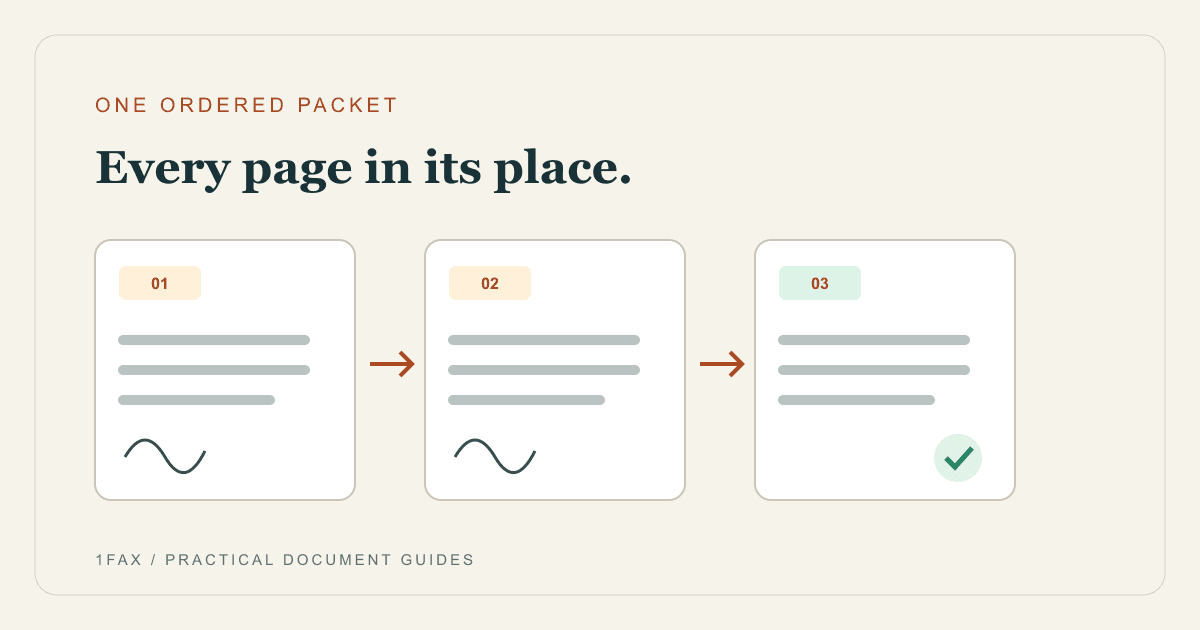
Combine the captured pages into a PDF when that makes the packet easier to review, or check the attachment order carefully. The intended sequence is usually the original reading order: front then back for each sheet, followed by any supporting documents requested by the recipient.
On a Mac, Preview can display thumbnails and let you reorder PDF pages. On Windows, review the output created by your scanning software. Whatever tool you use, reopen the saved result after editing. The multiple-document fax guide explains how to check the complete packet instead of reviewing each source file in isolation.
Preview and price the sides you will actually send
Upload your final document to the 1Fax website. Supported formats are PDF, DOCX, PNG, and JPG. Review the detected pages against your inventory. If the count is half what you expected, check whether only the fronts were captured. If it is too high, look for duplicated scans or unintended blank pages.
A cover sheet becomes an additional transmitted page. For example, three required two-sided sheets plus one cover produce seven pages. For a standard paid domestic send, that is $1 for the first two pages plus five additional pages at $0.50 each, or $3.50 before any optional charges. Confirm the actual total shown for your destination and options. See the cover-sheet guide if the recipient asks for routing details.
Keep transmission and two-sided printing separate
Your uploaded file describes a sequence of pages. It does not let you choose how the recipient prints those pages. A receiving office may view the fax digitally, print each page on its own sheet, or use its own two-sided printing settings. The goal is to deliver complete readable contents in the correct order.
After sending, follow the final delivery result and keep the exact file you transmitted. If the recipient reports a missing reverse side, compare the saved packet with the original before resending. Ask how they want a corrected or replacement packet identified, especially when the document includes signatures or pages that refer to one another.
Research notes
Official sources used for this guide
Agency, healthcare, and provider instructions can change. Recheck the linked source and the document in front of you before transmitting.
- 01
- 02
- 03Install and use a scanner in Windows (opens in a new tab)
Microsoft Support
Common questions
Frequently asked questions
Does one double-sided sheet count as one fax page or two?
It becomes two fax pages when both sides are included. Fax page counts follow the transmitted page images rather than the number of physical sheets you started with.
Will a fax machine automatically send the back of my document?
Only if the model and selected fax or scanning mode support capturing both sides. Check its manual and verify the output; otherwise scan the reverse sides manually.
Can I make the recipient print my online fax on both sides?
This upload-and-send workflow transmits pages in order. The receiving system and its printing settings determine whether the office uses single-sided or double-sided paper output.
In summary
Key takeaway
A reliable double-sided packet starts with an inventory of every required side. Capture each one, verify reading order and orientation, and compare the final page count before sending.