Quick answer
Quick answer
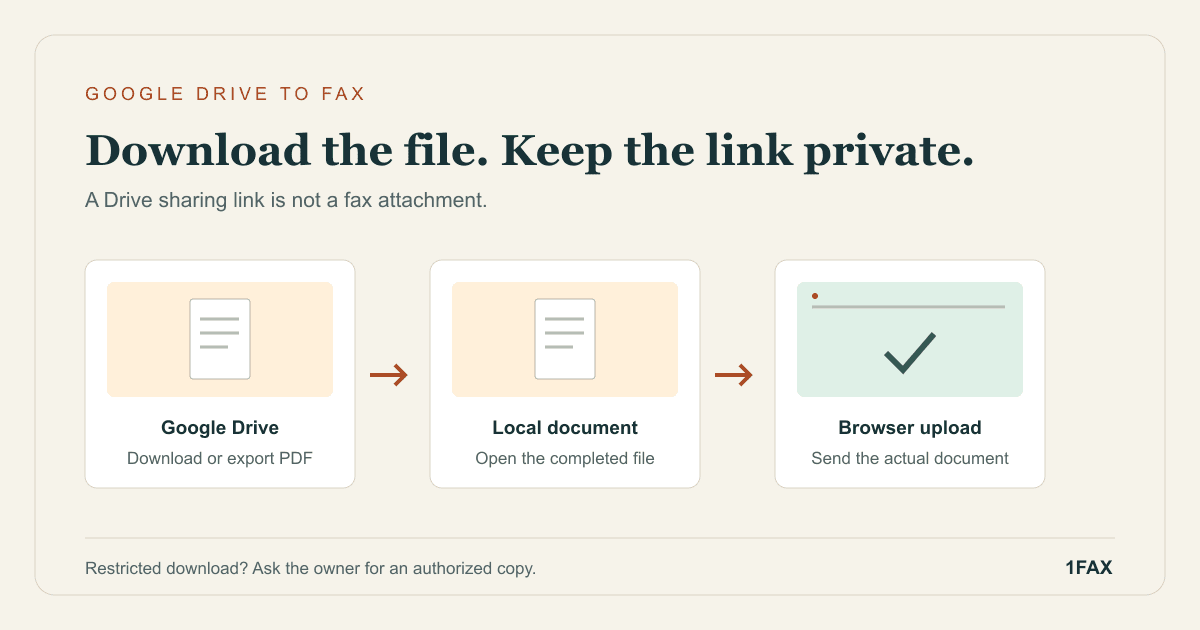
To fax a Google Drive file, download a supported file to your device first. For a Google Doc, open it and choose File > Download > PDF Document. Review that downloaded copy, then upload it to the 1Fax website, enter the recipient's fax number, check the page count and price, and send. A Drive sharing link alone cannot be faxed through this workflow.
What to get right
- Download PDFs and supported files; export Google Docs to PDF before upload.
- Review the downloaded output because a document's editing view can differ from its pages.
- Ask the owner if download permissions are disabled.
- Editing the Drive original later does not update a fax you already submitted.
Identify the document you need to download
Google Drive can hold uploaded PDFs, photos, Office files, and documents created with Google editors. Those starting points need slightly different preparation. A stored PDF can usually be downloaded as the PDF it already is; a Google Doc should be exported to a file format the fax website accepts.
Before downloading, confirm you are looking at the final document. Check the name, contents, signatures, and required attachments. When several people are editing a form, agree on the version to submit. Your downloaded copy becomes a snapshot; later edits in Drive do not change the packet already uploaded for faxing.
| Item in Drive | Preparation | What to upload |
|---|---|---|
| Download the stored file | The downloaded PDF | |
| Google Doc | Use File > Download > PDF Document | The exported PDF |
| DOCX | Download and inspect, or export a PDF | DOCX or PDF |
| PNG or JPG | Download the full image | The image, after checking orientation |
| Folder or multiple files | Choose and organize the necessary documents | Supported files rather than a ZIP archive |
Download a stored file or export a Google Doc
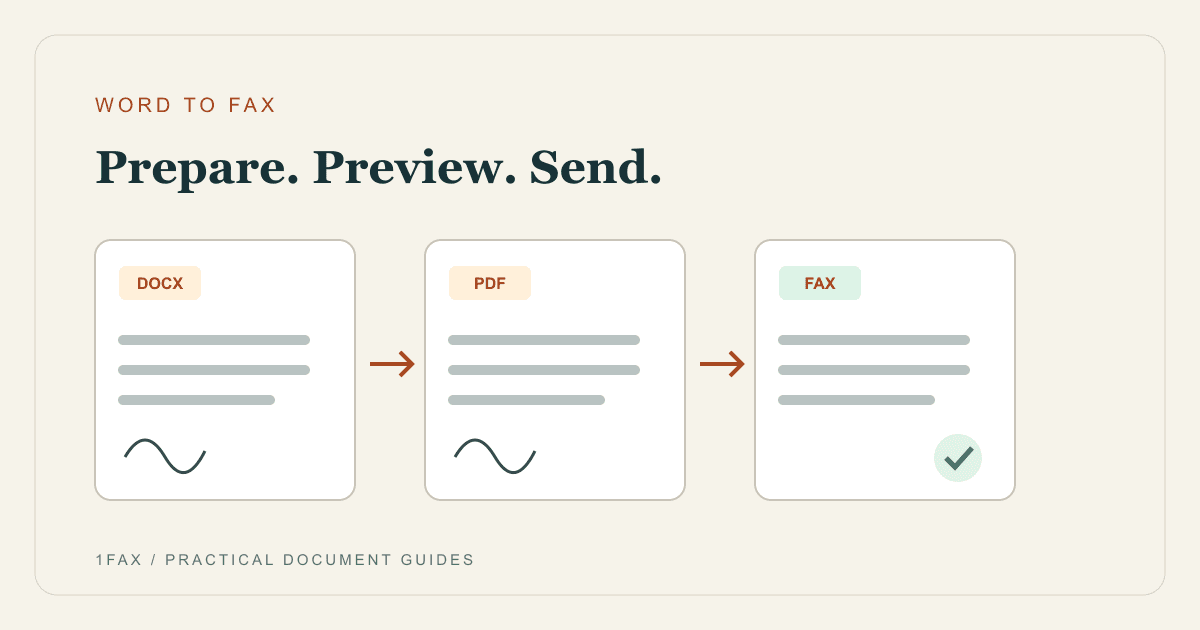
For a stored file on a computer, Google explains that you can select it in Drive, right-click, and choose Download. For Google Docs and other Google editors, open the document and use File > Download, then select the desired format. Choose PDF for a page-based packet you can inspect before sending.
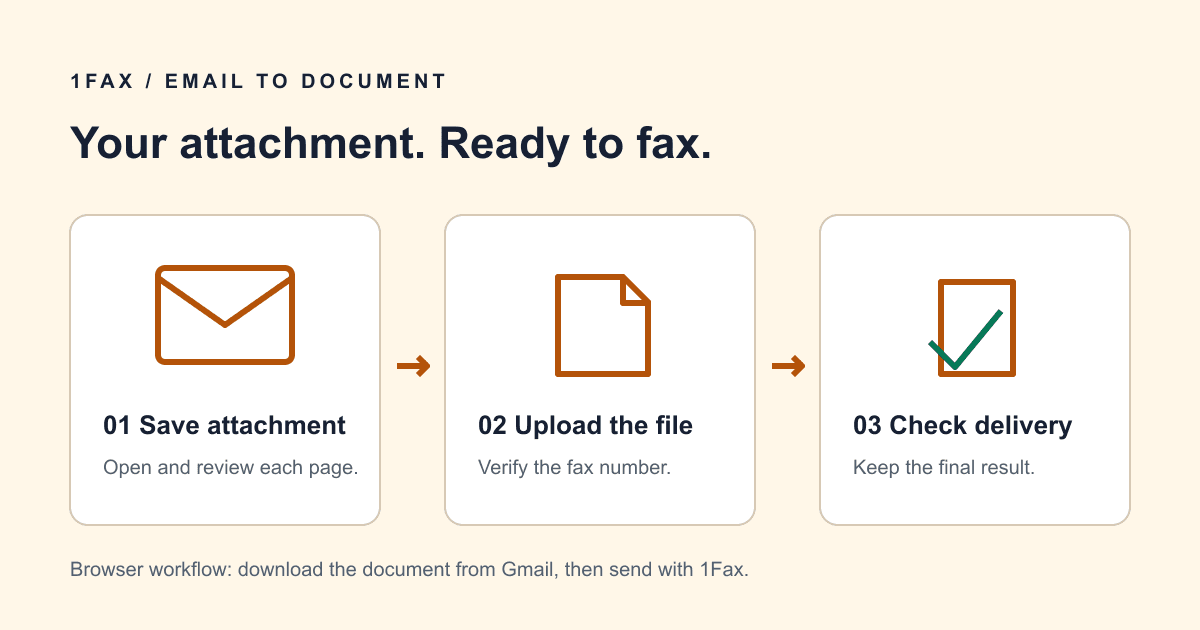
Find the completed download on your device and open it. Do not upload a sharing-link shortcut or paste a Drive URL into a document field. In this workflow, you transfer a file from Drive to your device and then upload that file; it does not require a direct Google Drive integration or a fax add-on.
Inspect the exported pages, especially tables and forms
Read the PDF as the recipient will read a sequence of pages. A wide table, long paragraph, or signature block can land differently in the export than you expected from the editing screen. Inspect the first and last lines on every page and look for a blank sheet at the end.
If you are exporting a spreadsheet, use a page layout that makes the relevant columns readable. Avoid squeezing a wide sheet into tiny text just to reduce the page count. If the packet includes a signed form and evidence, assemble them in the requested order using the multiple-document fax guide.
- Confirm the correct form version and all completed fields.
- Check signatures, dates, checkboxes, and text near the page edges.
- Verify that each attachment appears in the intended order.
- Re-export and reopen the file after changing the source layout.
Send when ready
Your final PDF can go straight from browser to fax.
No fax machine or monthly plan. Verify the number, review the page count, and keep the delivery status.
Handle download restrictions without changing sharing access
Google notes that an owner can disable downloading, printing, or copying for viewers and commenters. If the download option is unavailable, ask the owner for an approved downloadable copy or the appropriate access. Do not change a private document to a public sharing link just to prepare a fax.
Also check whether you opened the file under the intended Google account. A work account and a personal account may have different access to the same link. If a download fails, resolve the Drive problem before starting the fax submission so you can inspect a complete file rather than a partial or unexpected download.
Upload the file and review your fax details
Open the 1Fax send form, enter your notification email and the fax number confirmed by the recipient, and select the downloaded file. The website accepts PDF, DOCX, PNG, and JPG. Review the preview and detected pages, then decide whether the recipient needs a cover sheet.
A cover sheet adds a page to the transmission and the total. An eligible one-page domestic send can use the free offer. Other domestic sends cost $1 for up to two total pages, then $0.50 for each additional page; confirm the displayed total for your destination and options. If your source document arrived through email rather than Drive, the Gmail fax guide explains the attachment workflow.
Keep a record of the exported version and delivery
After submitting, keep the downloaded file with its fax reference and final delivery result. This helps when a shared document continues changing after you sent it. The record should identify the copy that was actually transmitted rather than merely link to an editable original.
Wait for a final result before deciding whether another send is necessary. Delivery confirms acceptance by the receiving fax system, while intake and review happen separately. If you must send a corrected packet, follow the recipient's instructions for identifying replacements so staff can distinguish it from the earlier version.
Research notes
Official sources used for this guide
Agency, healthcare, and provider instructions can change. Recheck the linked source and the document in front of you before transmitting.
- 01Download a file from Google Drive (opens in a new tab)
Google Drive Help
- 02Create, view, or download a Google Docs file (opens in a new tab)
Google Docs Editors Help
Common questions
Frequently asked questions
Can I paste a Google Drive link into 1Fax to send the document?
Use a downloaded supported file for this workflow. Download the PDF, DOCX, PNG, or JPG to your device, inspect it, and select it in the upload form.
Do I need a Google Docs fax add-on?
No add-on is needed for the download-and-upload method. Export a PDF from Google Docs and send that file through the website.
Why is Download missing for a document someone shared with me?
The owner may have restricted downloading for viewers or commenters. Ask for an approved copy or the required permission, and check that you are signed in to the intended account.
In summary
Key takeaway
Treat the downloaded file as your fax packet: inspect its layout, attach the necessary pages, and verify the destination. A clean export provides a stable record even when the original Drive document keeps changing.