Quick answer
Quick answer
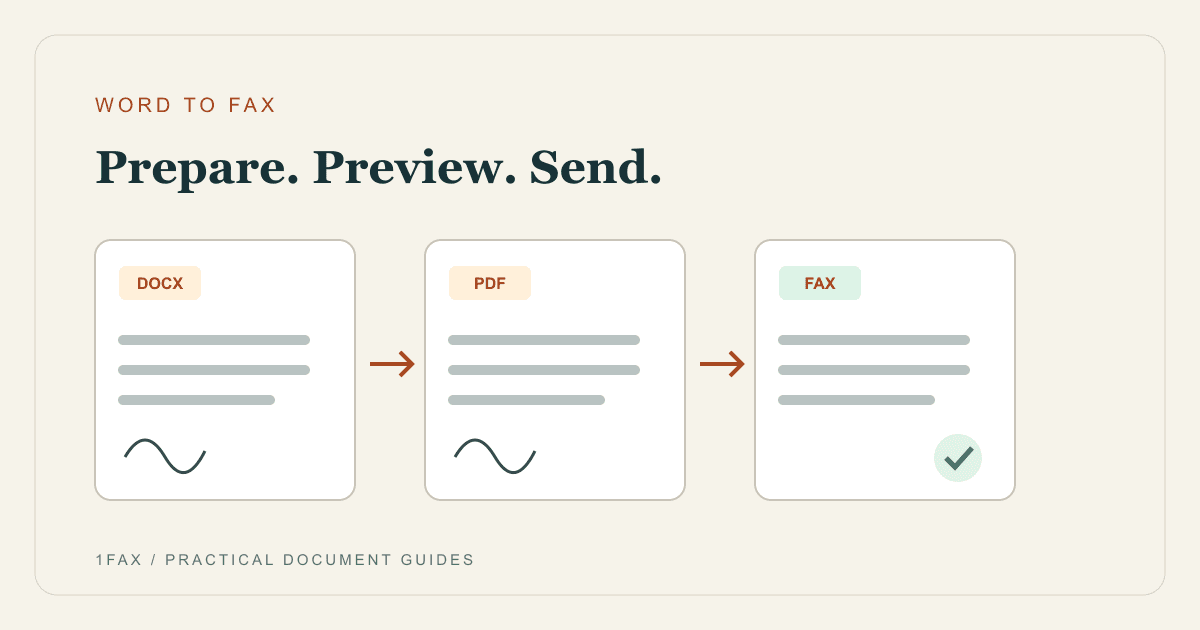
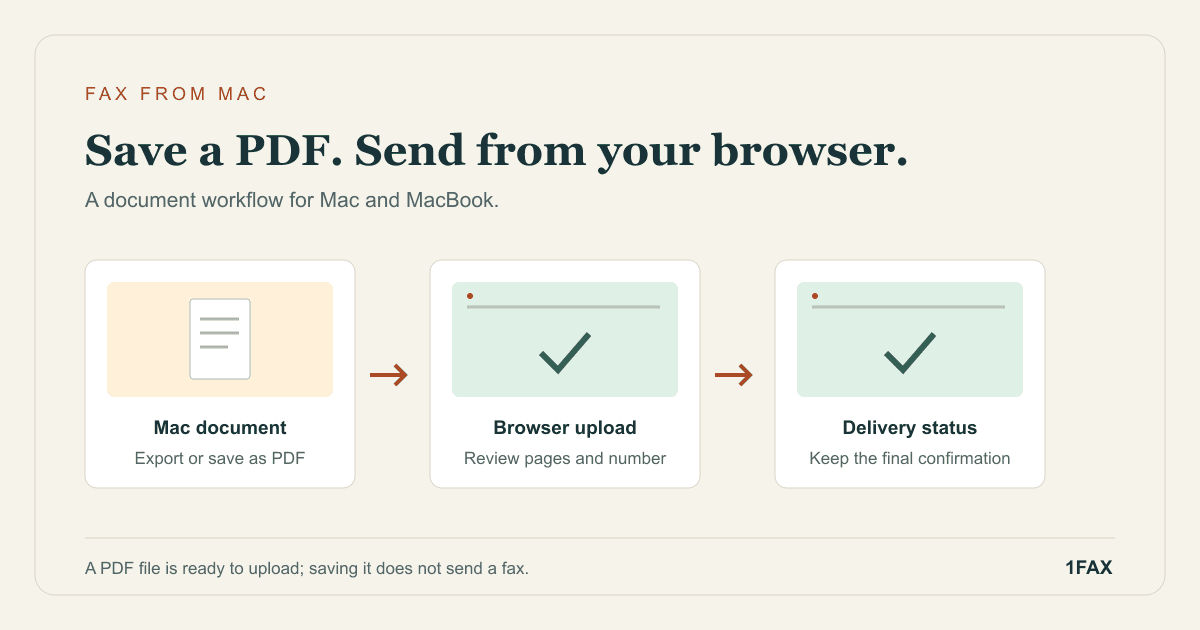
To fax from a Mac, save your finished document as a PDF, open it in Preview to check the pages, then upload it to an online fax service. In 1Fax, enter your email and the recipient's confirmed fax number, review the page count and price, and send. This browser workflow needs an internet connection rather than a printer or telephone line.
What to get right
- Use File > Print > Save as PDF when your Mac app supports printing.
- A Pages document needs an export; changing its filename does not convert it.
- Preview can combine PDFs and help you inspect the final packet.
- Keep the final delivery result with the exact file you sent.
Start with the file, not a printer setup
A MacBook or iMac can prepare the document and upload it through a browser. The online fax service handles the transmission to the receiving fax number. You do not need to connect your Mac to a telephone socket for this workflow, and adding a printer in System Settings is not a prerequisite.
First, confirm that fax is the recipient's requested submission method. Ask for the department's current fax number, any required reference number, and whether a cover sheet is needed. If they require an original signature or a specific form version, finish that step before preparing your file.
| Starting document | Preparation on your Mac | Final check |
|---|---|---|
| Open the existing file in Preview | Every intended page is present | |
| Pages or another printable document | Export a PDF or use Save as PDF | Layout and page breaks survived |
| DOCX | Upload the supported file or export a PDF | Tables and signature lines are readable |
| Paper document | Scan it to PDF or clear JPG/PNG images | All edges and both sides are captured |
Save a PDF from your Mac application
Apple documents a built-in route for printable documents: open the document, choose File > Print, open the PDF menu, and select Save as PDF. Choose a recognizable filename and location. Menu placement can vary with your app and macOS version.
Open the saved PDF separately. Inspect the bottom of each page, small text, filled form fields, and signatures. Saving a PDF is a preparation step; it does not transmit a fax. If you started in Word, the Word document fax guide explains what to check when exporting comments, markup, and page ranges.
- Save a distinct final copy so later edits do not change your record of the send.
- Use a real PDF export rather than renaming a .pages file to .pdf.
- Remove unintended blank pages and browser headers from the output.
- Use a copy that can open without a password when preparing the upload.
Put attachments in the right order with Preview
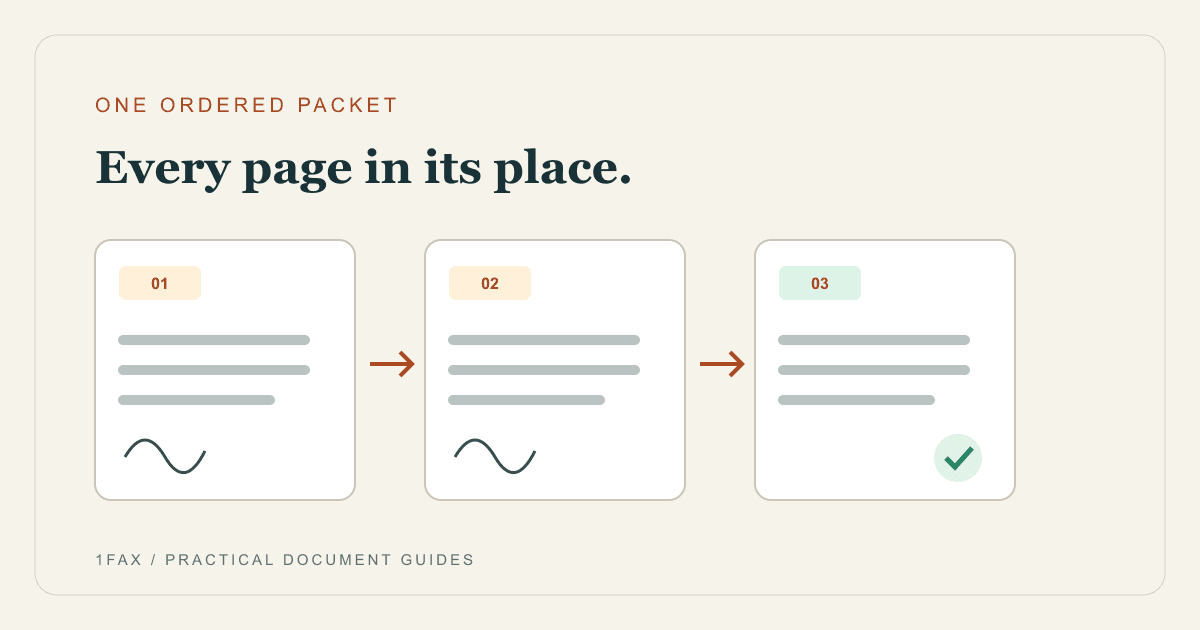
For a form plus supporting evidence, a single ordered PDF makes the packet easier to review. Apple explains how to display page thumbnails in Preview and drag pages between PDFs or reorder them. Duplicate your originals first, because Preview may save edits automatically.
Use the recipient's requested order. For example, put a completed request before its supporting statement and place the signature where the form expects it. Read the packet from beginning to end after combining it; a correct collection of files can still be confusing in the wrong sequence. The multiple-document fax checklist covers packet preparation in more detail.
Send when ready
Your final PDF can go straight from browser to fax.
No fax machine or monthly plan. Verify the number, review the page count, and keep the delivery status.
Upload and review the one-page send form
Open the 1Fax website in your Mac browser. Enter your notification email and the recipient's confirmed fax number, then attach the finished file. The website supports PDF, DOCX, PNG, and JPG. A Finder shortcut or a document-sharing link is not the document itself; select the actual supported file.
Review the preview, detected page count, destination, and displayed total. A cover page adds a transmitted page. An eligible one-page domestic send can use the free offer; other domestic sends cost $1 for up to two total pages, then $0.50 per additional page. International rates may differ, so review the form's final total for your destination.
Check the delivery result before calling it finished
After submission, follow the status until it reaches a final result. A queued or sending message means work is still in progress. Avoid starting another copy simply because you have not yet seen delivery confirmation; first inspect the current job and any error shown.
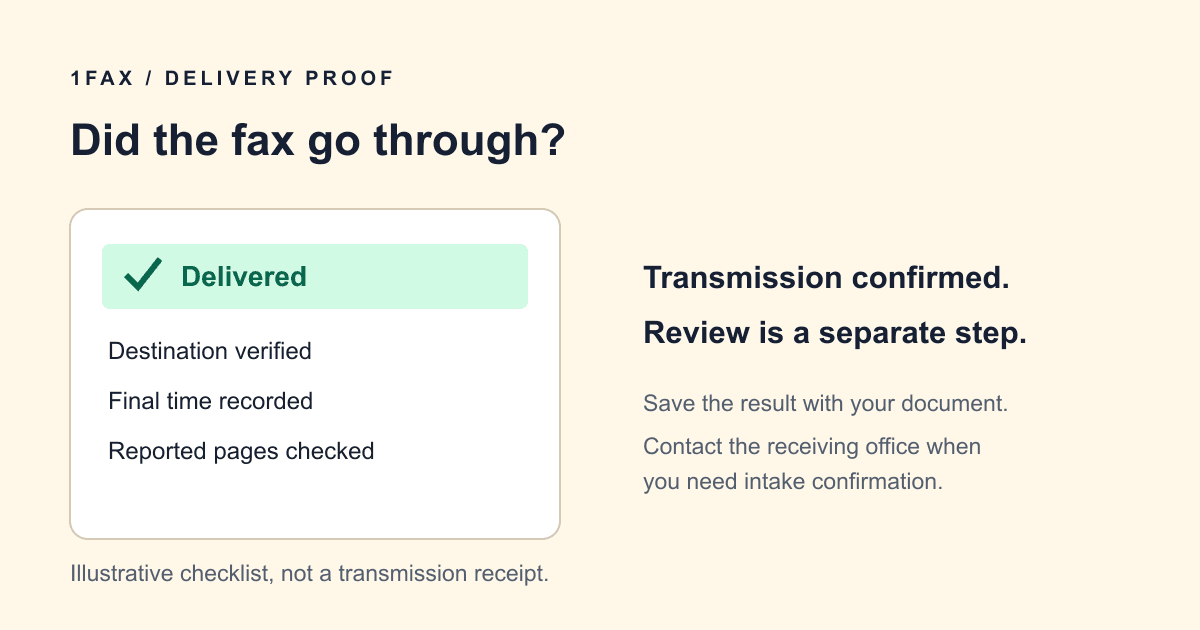
Save the exact PDF and the final transmission result together. Delivery indicates acceptance by the receiving fax system, not that a staff member read or approved the contents. For a time-sensitive request, ask the receiving office how it confirms intake. Our fax delivery confirmation guide explains that distinction.
Fix file-selection problems before resubmitting
If the file picker cannot find the document, return to the app where you saved it and confirm the filename and folder. Downloads, Desktop, and iCloud Drive are different locations. Open the copy you intend to upload rather than relying on a similarly named recent-file entry.
If the preview is wrong, repair the source document or export a fresh PDF and review again. Do not repeatedly send a packet with cropped text or missing pages. When using a shared Mac, remove temporary local copies according to your own document-handling needs after keeping any record you are required to retain.
Research notes
Official sources used for this guide
Agency, healthcare, and provider instructions can change. Recheck the linked source and the document in front of you before transmitting.
- 01Save a document as a PDF on Mac (opens in a new tab)
Apple Support
- 02Combine PDFs in Preview on Mac (opens in a new tab)
Apple Support
Common questions
Frequently asked questions
Can I fax from a MacBook without installing a fax app?
Yes. You can prepare a supported document and use the 1Fax website in your browser. No dedicated fax app is required for this upload-and-send workflow.
Can I upload an Apple Pages file directly?
Export it to PDF first. The 1Fax website accepts PDF, DOCX, PNG, and JPG; renaming a Pages file does not convert its format.
Does my Mac need to stay awake for the whole fax transmission?
Finish uploading and submitting the job and make sure it has been accepted. After that, use the status information and email updates to track the server-side transmission. Do not interrupt an upload that is still in progress.
In summary
Key takeaway
A Mac fax workflow starts with a clean final document: export, inspect, put the pages in order, and upload. Review the destination and total before sending, then keep the final delivery result with your copy of the packet.