Quick answer
Quick answer
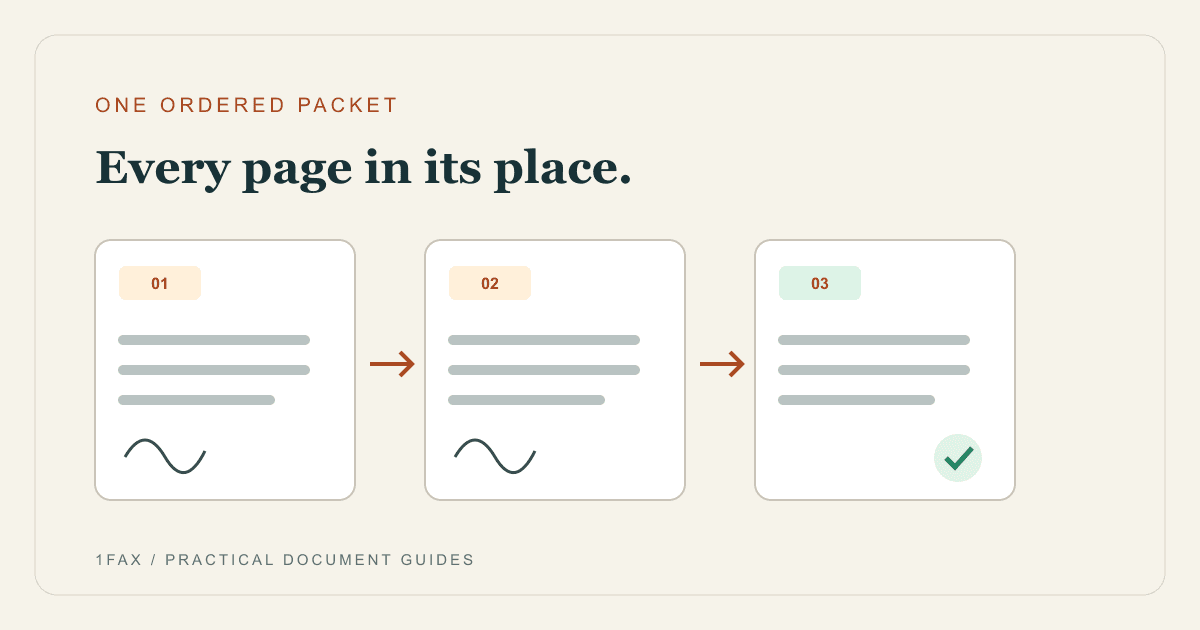
Prepare the files in the recipient's requested order, remove duplicate pages, and check the total including any cover sheet. You can upload multiple supported files on the 1Fax website. If the order is especially important, combine them into one PDF first and inspect that packet before uploading.
What to get right
- One file can contain many pages; attachment count is not page count.
- Follow recipient-provided packet order and routing-sheet instructions.
- Avoid adding a second cover sheet when one is already in the PDF.
- Check the combined preview rather than each source file alone.
Make a packet list before selecting files
Start with the request letter or application instructions. Write down the required main form, supporting documents, and any routing sheet. If an office specifies an order, use it instead of creating a new order based on filenames.
Check whether every attachment belongs to the same recipient and request. Unrelated documents are easier to misroute when they arrive together. Do not combine materials for different people or departments just to reduce the number of submissions.
- Place the required routing page first.
- Keep the main form and its continuation pages together.
- Put supporting documents in the requested sequence.
- Remove duplicate copies and unrelated drafts.
Choose separate attachments or one PDF
The website supports multiple attachments, which is convenient when your packet already consists of supported files. Inspect the resulting preview to make sure the sequence is right. A single prepared PDF is easier to review when the packet has a strict order.
Adobe Acrobat's Combine files tool lets you add documents, arrange files or individual pages, and save the combined PDF. Use a tool you are authorized to use for the document; a separate online converter may upload your files to another service.
| Situation | Useful approach | Final check |
|---|---|---|
| A few ready-to-send files | Attach supported files | Review the combined preview |
| Strict packet order | Build one PDF first | Inspect each page in sequence |
| Existing cover sheet | Keep it in the packet if required | Do not add another automatically |
| Separate recipient departments | Prepare separate packets | Confirm each destination |
Calculate pages, not files
A two-page form plus a three-page statement is five document pages even though it is only two files. If you add a one-page cover sheet, the fax becomes six pages. Blank or repeated pages also increase the transmitted packet unless you remove them.
Compare the page count displayed by the website with your own list. If the counts disagree, stop and inspect the preview. This is often faster than discovering after delivery that the receiver got an incomplete packet.
- Count every page in each attachment.
- Include required barcodes or routing pages.
- Include a cover sheet only once.
- Review the displayed total before any payment authorization.
Send when ready
Your final PDF can go straight from browser to fax.
No fax machine or monthly plan. Verify the number, review the page count, and keep the delivery status.
Review the packet as the receiving office will see it
Open the preview from the beginning and move through it in order. Verify that names, reference numbers, dates, and signatures remain legible. A continuation page without its main form may not make sense to someone sorting a busy fax inbox.
Check file limits shown on the upload form before submitting. If a packet is too large, first remove unnecessary pages or prepare a smaller readable copy. Split a packet only when the recipient can accept separate transmissions, and clearly identify the parts.
Track one final result before resending
After submission, keep the live status page and wait for its final result. A retry event is not a second document request, and an in-progress status is not a reason to immediately submit the same packet again.
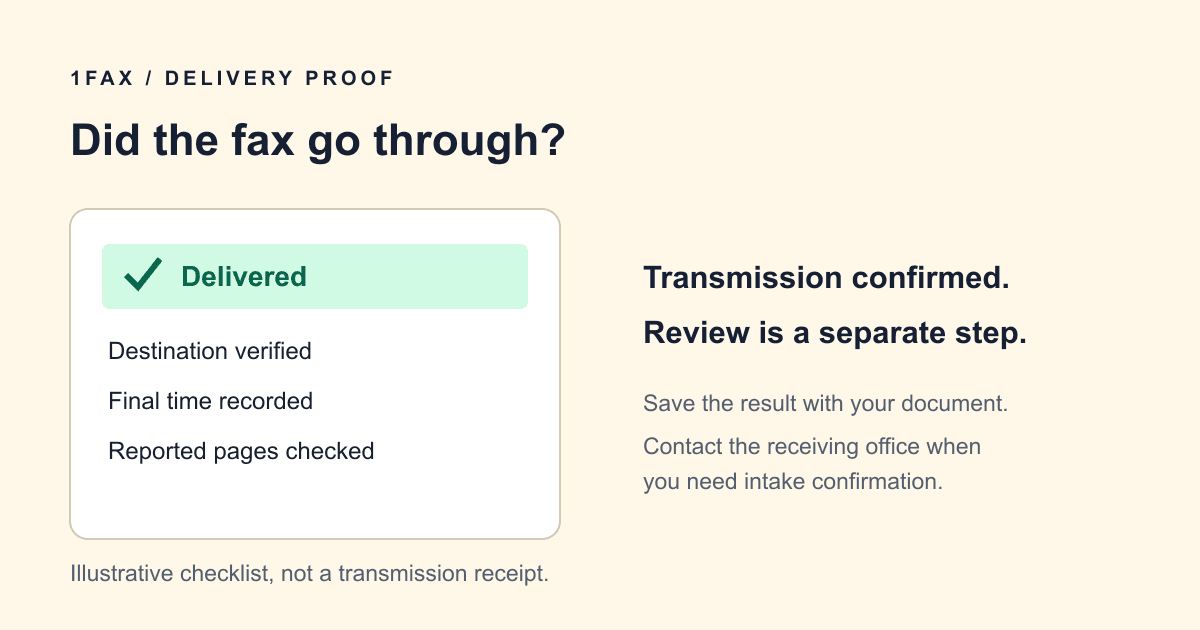
When a fax reports delivered, retain its confirmation with the final PDF or attachment list. If the office reports missing pages, compare its page count with yours and confirm exactly what needs to be resent.
Research notes
Official sources used for this guide
Agency, healthcare, and provider instructions can change. Recheck the linked source and the document in front of you before transmitting.
- 01Combine and arrange files in a PDF (opens in a new tab)
Adobe Acrobat Help
Common questions
Frequently asked questions
Can I send two PDFs in the same fax?
Yes, the 1Fax website supports multiple file attachments. Check the combined preview and total page count, or merge the PDFs first when their order needs extra control.
Does each attachment need its own cover sheet?
Usually a packet needs one routing cover sheet, if any, but follow the recipient's instructions. Do not remove a mandatory barcode or agency-provided routing page.
Does merging files make the fax cheaper?
Combining files does not reduce their page count. Removing duplicate or unnecessary pages can reduce the packet, but keep all pages the recipient requires.
In summary
Key takeaway
A good multi-document fax is a coherent packet: correct destination, deliberate page order, one accurate page total, and a saved delivery result. Organize first, then send.