Quick answer
Quick answer
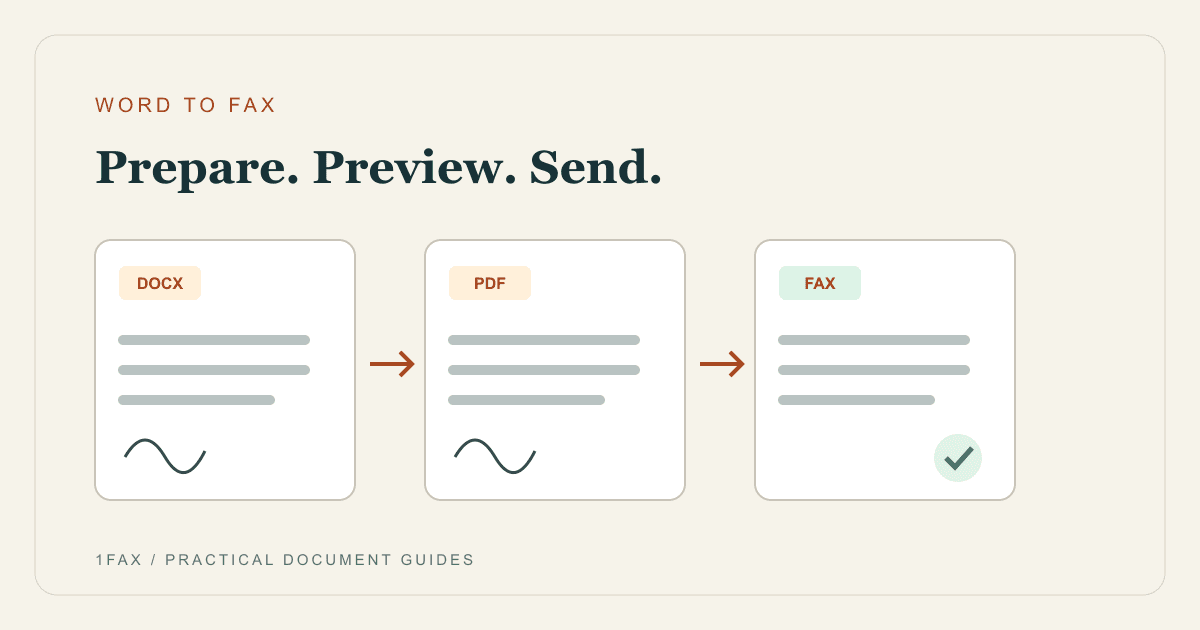
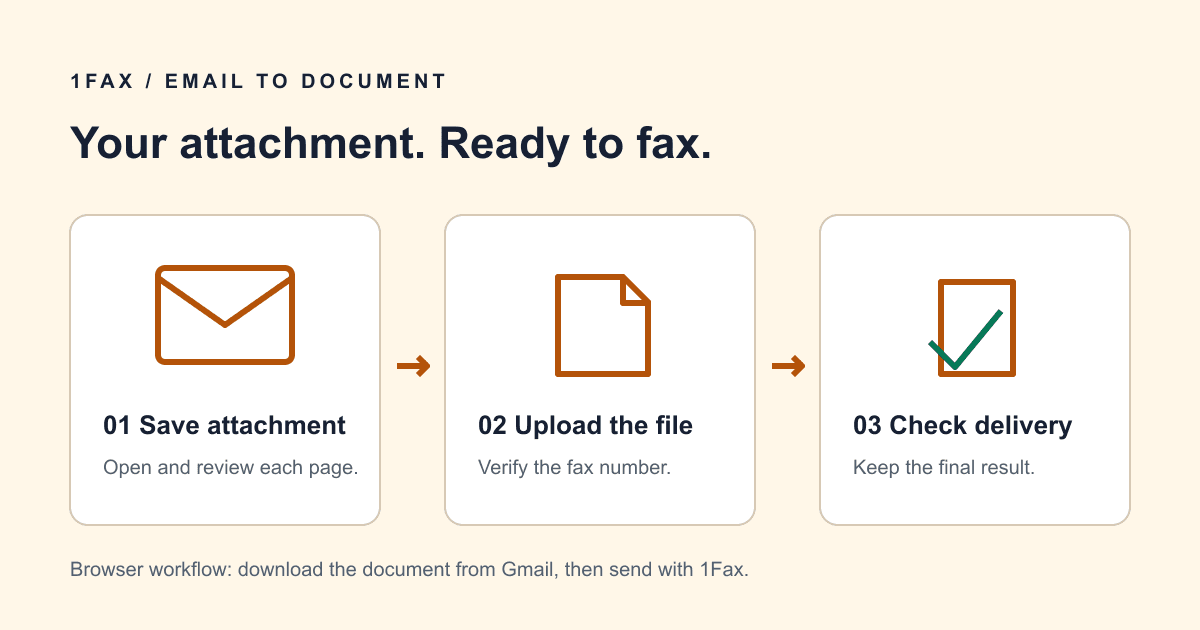
To fax a document received in Gmail with 1Fax, download the attachment, upload it to 1Fax in your browser, enter the verified fax number, and send. This is a browser upload workflow. Sending an ordinary Gmail message to a phone number does not transmit a fax.
Choose between browser upload and email-to-fax
A document in your inbox is still a file that needs a fax service to reach a fax number. The simplest route for an occasional send is to save the attachment and upload it through a browser. You can use the same Gmail address for the delivery email, but that does not make the outgoing email itself a fax.
A provider that supports email-to-fax can instead give an authorized sender a special destination address. Follow that provider's exact instructions for the address, attachment types, sender verification, and billing. Do not invent a number@1fax.com address: 1Fax's public send flow uses a file upload.
| Method | What you do | Check first |
|---|---|---|
| Browser upload | Download the attachment and upload it to the fax website. | File format, page count, destination, and total price. |
| Email-to-fax provider | Send from an authorized email address to the provider-specified address. | Account requirements, address syntax, and attachment support. |
| Ordinary Gmail message | Email a person or organization. | An email receipt is not fax delivery confirmation. |
Step 1: Download the actual document
On a computer, open the Gmail message and use the attachment download control. If the email includes several files, choose the completed document and any required supporting pages. Open the saved file before proceeding so you know you have the attachment rather than a screenshot of the inbox.
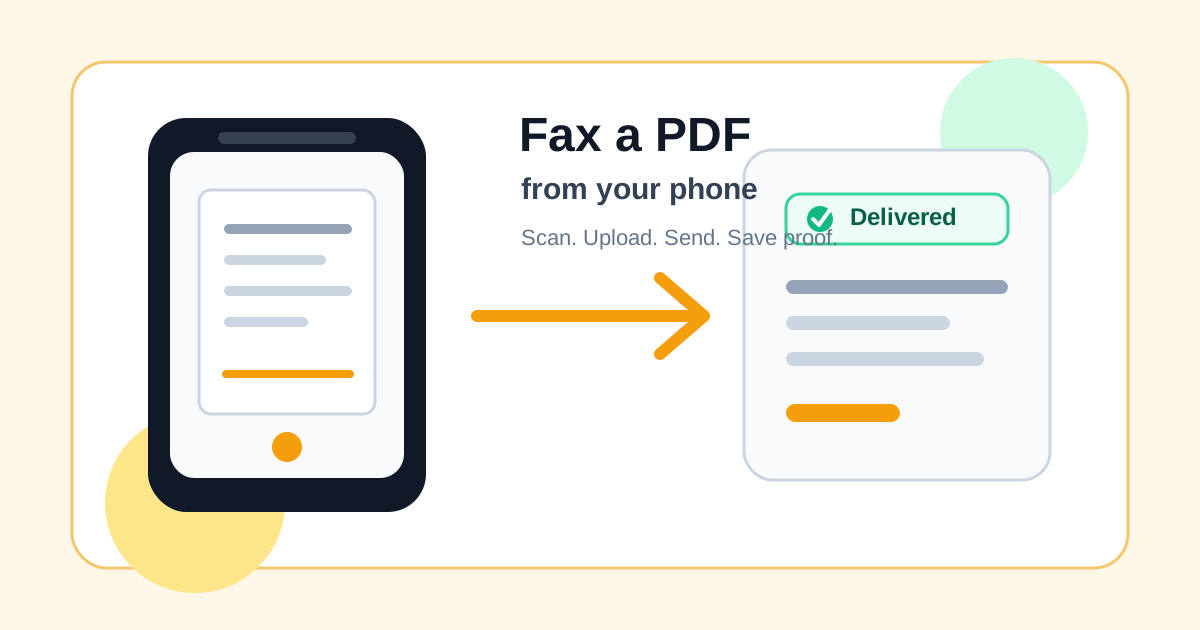
On a phone, save or share the attachment to a location available in your browser's file picker. The exact control depends on your device. If the message contains a Drive link, open the linked document and download an authorized copy; a link by itself is not a faxable document.
Google documents Gmail attachment downloads here: https://support.google.com/mail/answer/30719?hl=en (opens in a new tab). A file downloaded as an email message can be an .eml file; that is different from the PDF or image attached to the message.
Step 2: Review pages and remove unrelated email content
Check the signature, page order, orientation, and small print. Avoid faxing the whole conversation when the recipient only needs the attached form. Email chains can reveal unrelated contacts, account details, and earlier drafts.
If the material exists only in the email body, use your device's print-to-PDF option when available and inspect the resulting pages. Remove unnecessary headers and trailing blank pages before sending. Do not simply rename an .eml or ZIP file to .pdf; changing the extension does not convert the content.
Send when ready
Your final PDF can go straight from browser to fax.
No fax machine or monthly plan. Verify the number, review the page count, and keep the delivery status.
Step 3: Upload to 1Fax and confirm the total
Open 1Fax, select the saved PDF or supported image, and enter the fax number from the recipient's current instructions. Use a brief attention line if the fax goes to a shared office. Include a cover page only when useful or required, and count it in the packet total.
Review the displayed price and any free-send eligibility before submitting. A browser send does not require an email-to-fax subscription. Use a sender email you can access so you can receive the final status update, then retain the tracking page while transmission is in progress.
Step 4: Confirm fax delivery, not email activity
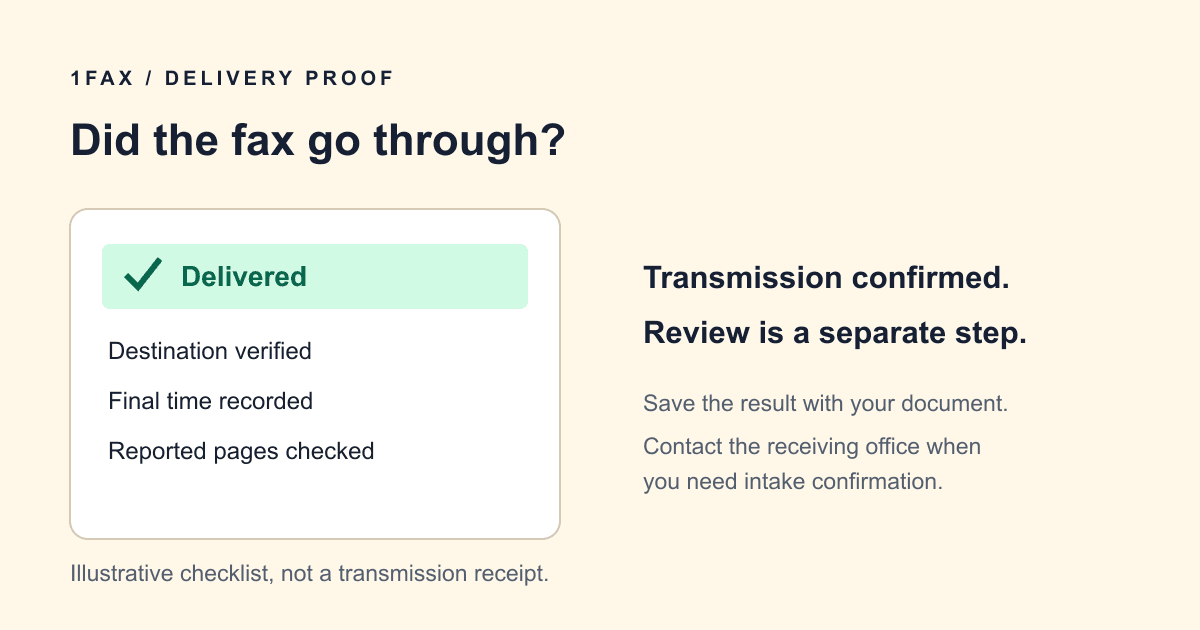
A Gmail download notification, sent message, or payment authorization does not mean the receiving fax system accepted the document. Wait for the fax result in the 1Fax status page or final email.
If the fax is still sending or has a scheduled retry, avoid submitting another copy. If it fails, use the stated reason to decide whether to check the number, contact the recipient, or recreate the file. A delivered fax still needs recipient follow-up when human review matters.
Research notes
Official sources used for this guide
Agency, healthcare, and provider instructions can change. Recheck the linked source and the document in front of you before transmitting.
- 01
- 02
Common questions
Frequently asked questions
Can I fax by entering a fax number in Gmail?
An ordinary Gmail recipient field does not dial fax numbers. Use a fax service: upload the attachment in your browser, or follow an email-to-fax provider's specific setup.
Does 1Fax receive faxes in Gmail?
1Fax is for outbound sending. Its delivery emails report outgoing fax status; they do not provide an inbound fax number.
Can I fax a Google Drive link?
Download or export the document first and upload the file. A sharing link does not contain the document pages the receiving fax machine needs.
In summary
Key takeaway
Prepare a readable document, verify the destination, and keep the final transmission result with your own copy of the file. Start your send on 1Fax when the packet is ready.