Quick answer
Quick answer
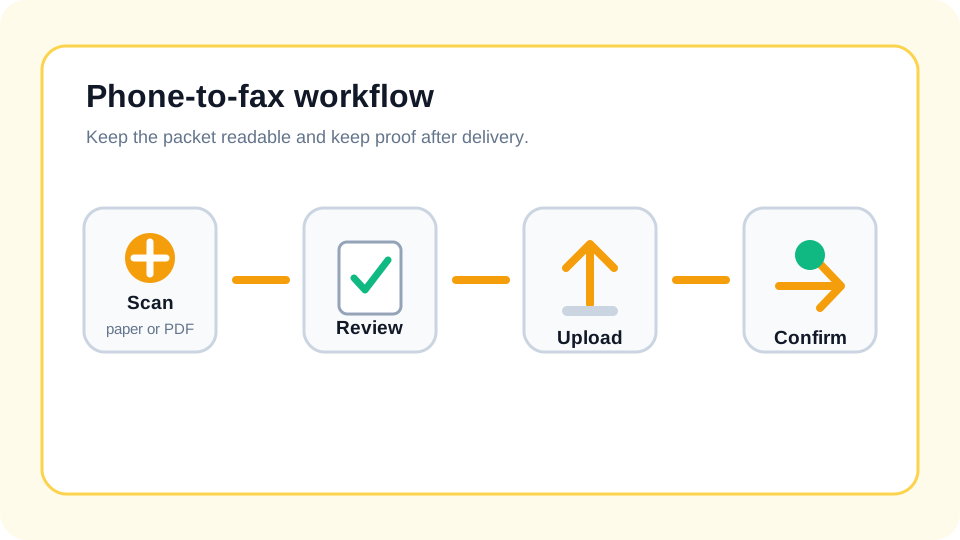
Save or scan the document as a PDF, review each page, then upload it to 1Fax in your phone browser. Verify the fax number and checkout total, submit once, and save the final delivery result.
Can you fax a PDF from your phone?
Yes. A phone can replace the scanner, computer, and fax machine for most one-time outbound faxes. The key is to create a clean PDF first, then send it through an online fax service that can deliver the file to a regular fax number.
This is useful when a doctor's office, government agency, insurance company, school, court, or business still asks for fax instead of email. You do not need a landline or a monthly fax plan. You need the document, the correct destination fax number, and a delivery confirmation after sending.
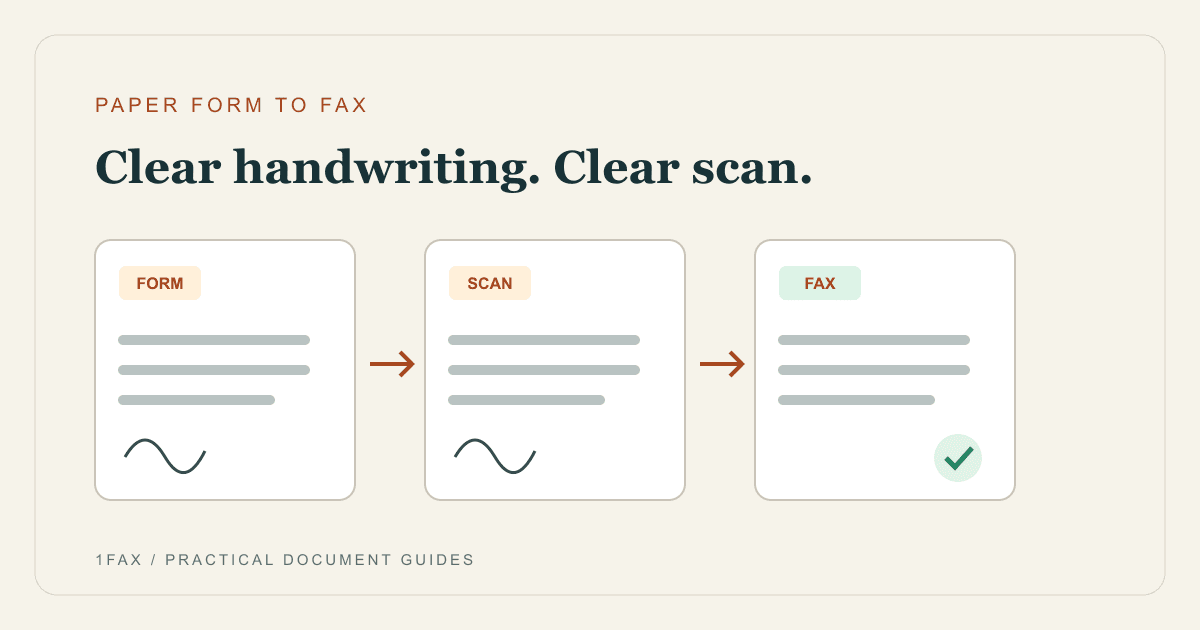
The most important part is document quality. A faxed photo can become hard to read after black-and-white conversion, so treat the phone as a scanner, not just a camera.
What to prepare before you send
Before opening any fax app or website, collect the final version of the document. If you are sending a signed form, sign first and make sure every required field is complete. If the recipient gave you a case number, claim number, account number, or attention line, keep that nearby for the cover sheet.
Use the fax number from the recipient's official instructions, not from a random search result. Many large organizations have different fax numbers for different departments, forms, and locations. A technically delivered fax can still be delayed if it reaches the wrong intake queue.
- Final PDF or clear paper document ready to scan.
- Recipient fax number verified from the official source.
- Recipient name, department, or attention line.
- Case, claim, account, patient, or reference number if required.
- Your email address for delivery confirmation.
- Optional cover sheet text with a short reason for the fax.
Find the PDF on iPhone or Android
On iPhone, Apple's Notes scanning feature can capture paper documents; save or share the finished scan as a PDF to a location available to your browser. Open the PDF again to verify the page order before upload. Apple's current instructions are at https://support.apple.com/en-us/108963 (opens in a new tab).
On Android, save the completed PDF from your scanner or email app and select it through the browser's file picker. Menu labels vary by device. If the document is stored in the cloud, download a copy first rather than uploading a sharing link.
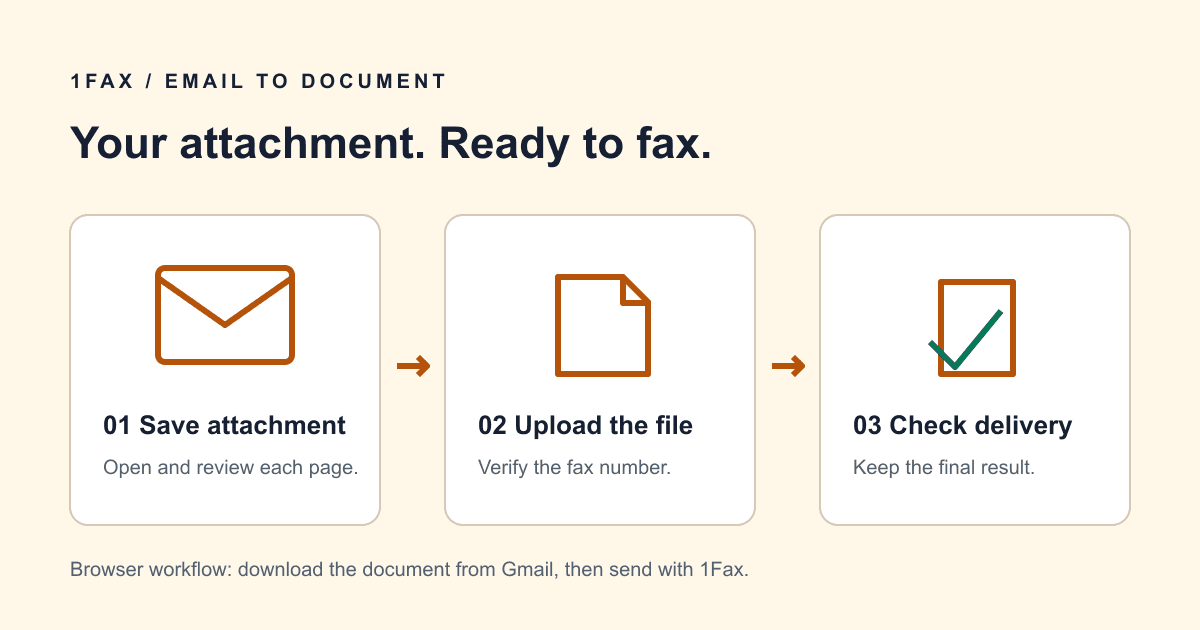
If you already received a PDF by email, use the original attachment. Taking screenshots can reduce readability and accidentally omit pages.
Send when ready
Your final PDF can go straight from browser to fax.
No fax machine or monthly plan. Verify the number, review the page count, and keep the delivery status.
Step 1: Scan the document into a clean PDF
If the file is already a PDF on your phone, open it and check every page before sending. If the document is on paper, scan it with your phone's built-in scanning feature or a trusted scanning app, then export it as a PDF.
Use bright, even light and place the document on a flat, contrasting surface. Keep the page edges visible so the scanner can crop correctly. Review the result at full size and rescan any page with blur, glare, missing corners, or cut-off signatures.
Black-and-white or grayscale usually works better for fax than color photos. It keeps file size smaller and helps text survive fax compression.
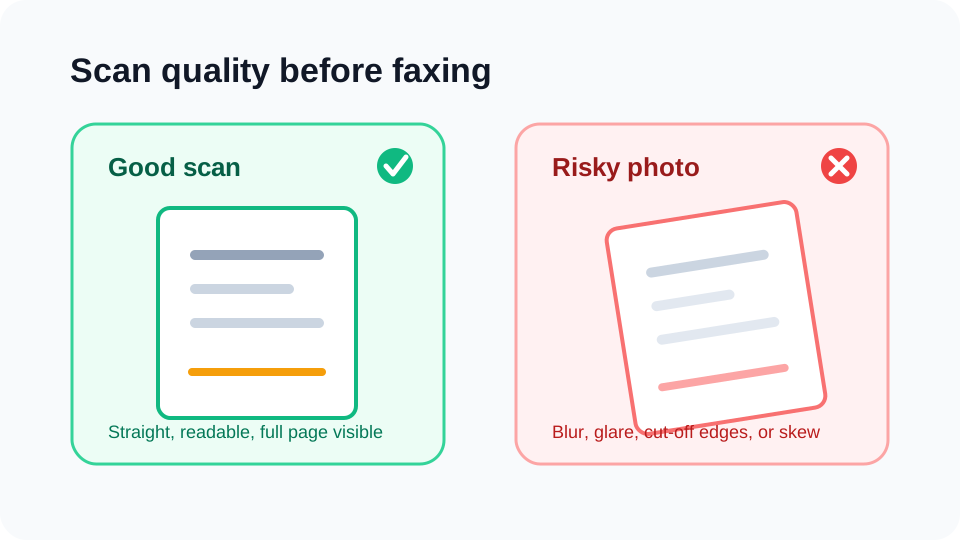
| Check | Why it matters |
|---|---|
| Straight pages | Fax compression makes skewed text harder to read. |
| No glare | Bright reflections can erase signatures or form fields. |
| Full page visible | Missing corners can remove barcodes, dates, or initials. |
| Readable small print | Recipients often need fine print on medical, tax, or legal forms. |
| Correct page order | Fax recipients usually process packets in the order received. |
Step 2: Add a short cover sheet when it helps routing
A cover sheet is optional for some personal faxes, but it is often helpful for business, healthcare, legal, insurance, and government recipients. It tells the intake team who the fax is for and what to do with it.
Keep the cover sheet short. Include the recipient, attention line, subject, page count, your contact information, and any reference number the recipient requested. Avoid placing sensitive details on the cover sheet unless the recipient specifically requires them there.
- To: recipient office or department.
- Attention: person, team, or intake queue.
- Subject: short reason for the fax.
- Reference: case, claim, account, or patient number when required.
- Pages: total pages including the cover sheet.
- Contact: your phone or email for follow-up.
Step 3: Upload the PDF and enter the fax number
Open 1Fax in your mobile browser, upload the prepared PDF, enter the verified fax number, and review the page count before sending. If the recipient is outside the United States or Canada, use the full international format shown by the recipient.
Do not split a single form packet across multiple faxes unless the recipient tells you to. If the packet is long, keep the pages in order and make sure the page count on the cover sheet matches the file you upload.
After sending, wait for the status update instead of closing the workflow immediately. The confirmation is the part you will need if the recipient asks for proof.
Step 4: Save the confirmation
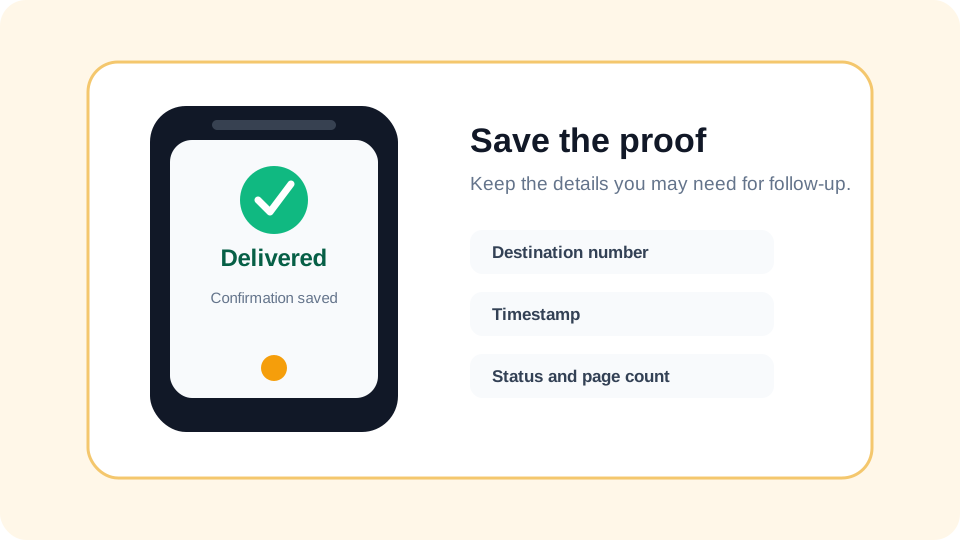
Save the confirmation email or dashboard page after the fax finishes. For deadline-sensitive paperwork, also save the exact PDF you sent and the source where you verified the fax number.
A delivered status means the fax was accepted by the destination fax system. It does not guarantee the recipient has reviewed, approved, or processed the document. If the matter is urgent, follow up using the recipient's official phone number or portal instructions.
- Save the delivery timestamp.
- Save the destination fax number.
- Save the page count.
- Save the submitted PDF.
- Record the official source for the fax number.
- Follow up for urgent filings or medical deadlines.
Common phone fax mistakes
Most mobile fax problems happen before the fax is sent. A blurry scan, wrong number, missing signature, or missing reference number can create delays even when the transmission itself works.
Take two minutes to review the packet like the recipient will see it. If you cannot read the smallest important text on your phone screen, the receiving fax machine may not be able to read it either.
| Mistake | Better approach |
|---|---|
| Taking angled photos | Use scan mode and export as PDF. |
| Sending screenshots | Send the original PDF or a clean scan. |
| Skipping the cover sheet | Use one when routing details matter. |
| Using a generic fax number | Verify the exact department or form-specific number. |
| Closing without confirmation | Save the final status and timestamp. |
If the PDF is rejected or prints at the wrong size
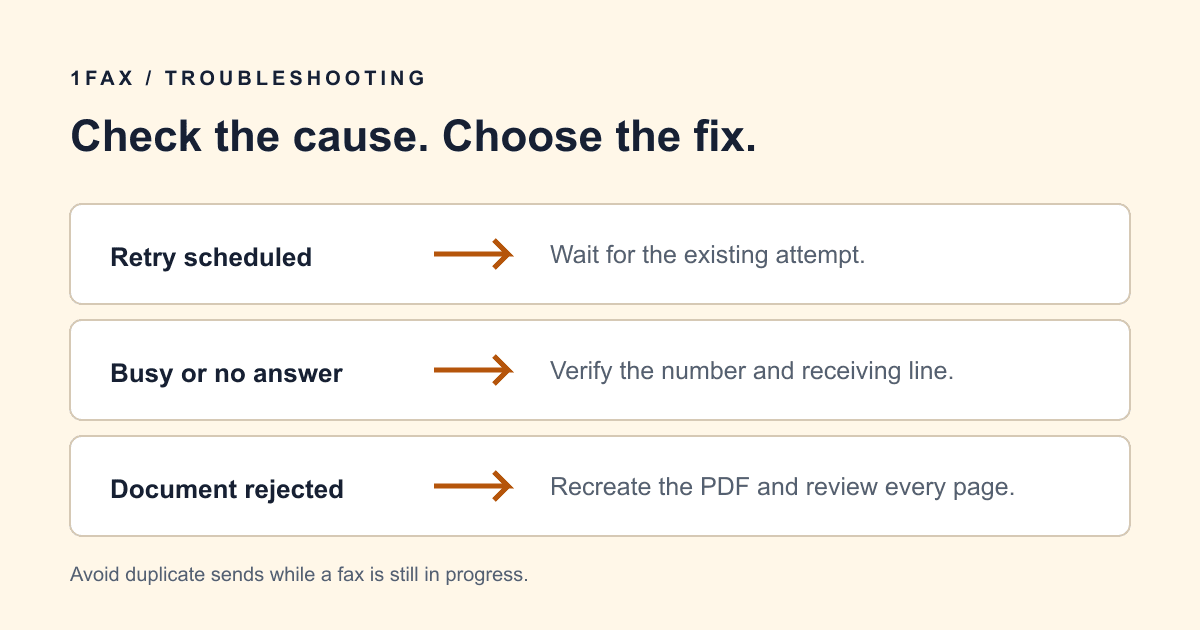
Open the document and use Print to PDF or Save as PDF with the intended paper size, such as Letter or A4. Inspect the new file for cropped text, missing fields, and changed signatures before uploading it again. Renaming the file or compressing it alone may not correct a page-dimension problem.
When a fax is waiting for an automatic retry, let that job finish before starting a separate send. After a final failure, use its stated reason to decide whether to fix the document or contact the recipient about the receiving line.
Research notes
Official sources used for this guide
Agency, healthcare, and provider instructions can change. Recheck the linked source and the document in front of you before transmitting.
- 01
Common questions
Frequently asked questions
Can I fax a PDF from an iPhone?
Yes. Scan or open the PDF on your iPhone, upload it to an online fax service such as 1Fax, enter the verified fax number, and save the delivery confirmation.
Can I fax a PDF from Android?
Yes. Use your Android phone to scan or upload the PDF, review the pages, send through an online fax service, and keep the confirmation with timestamp and page count.
Do I need a fax machine or phone line?
No. Online fax services send the PDF to the recipient's fax number through fax infrastructure, so you do not need a physical fax machine or landline.
Is a phone photo good enough for faxing?
A quick photo is risky. Use scan mode, export as PDF, check for blur or glare, and make sure signatures and small print are readable before sending.
In summary
Key takeaway
Faxing a PDF from your phone works best when you treat the phone like a scanner: create a clean PDF, verify the destination number, add routing details when needed, send from your browser, and save confirmation. That gives you the speed of mobile sending without losing the proof and readability recipients expect from fax.