Quick answer
Quick answer
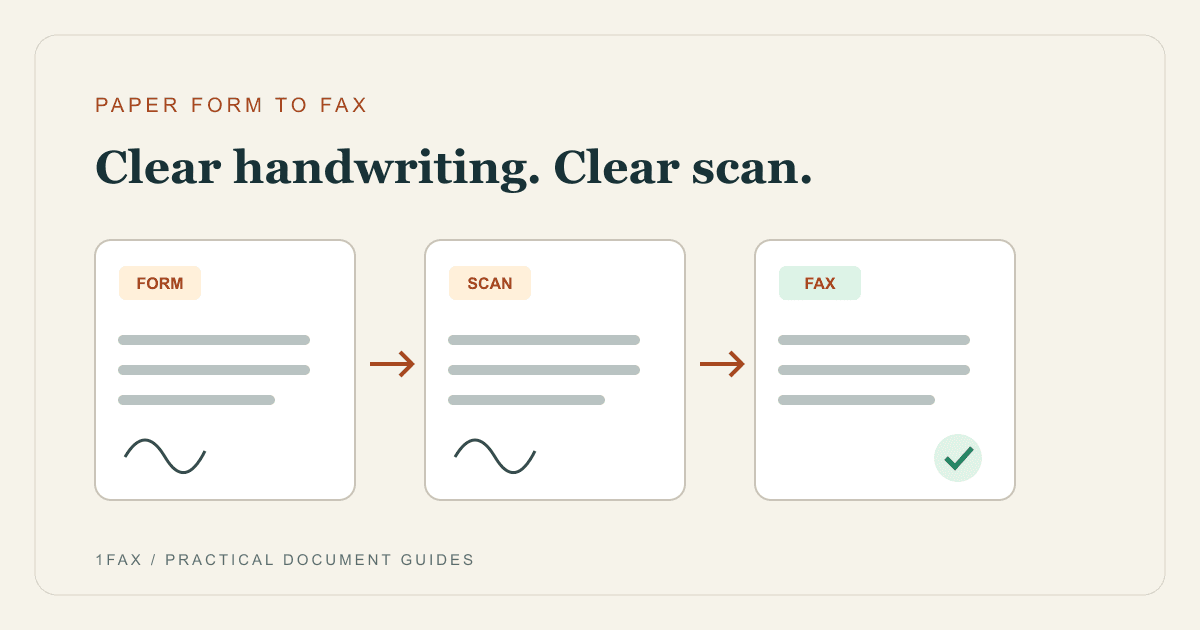
Complete the form according to the recipient's instructions, scan every required page, and inspect the scan at full size. Save it as a PDF or supported image, upload it to 1Fax, and preview the fax before sending. Confirm that the recipient accepts a faxed copy when signatures or original documents are involved.
What to get right
- Scan the document itself, not a screenshot of its thumbnail.
- Check handwritten numbers, signatures, and page edges at full size.
- Include required reverse sides and continuation pages.
- Ask the receiver whether a faxed copy is acceptable.
Finish the paper form before scanning
Use the recipient's current form and follow its completion instructions. Check required dates, signatures, initials, checkboxes, and supporting pages. A clear scan cannot fix an incomplete form or establish that the receiver accepts a copy in place of an original.
Ask the receiving office which fax number and department to use. Keep any required barcode or routing sheet with the form. If the request requires an original document or a particular signing process, confirm the submission method before scanning.
Create a document scan rather than a casual photo
Lay the page flat in even light and position the camera directly above it. Keep shadows, fingers, and the surrounding desk outside the page area. Review the corners before saving so small print and signature lines are not cropped.
On iPhone, Apple documents scanning through Notes or Files using Scan Documents. Capture the page, adjust its corners if needed, add additional scans, and save the document. Menu placement varies by app and iOS version. On another phone, use a document-scanning tool available on that device and inspect its saved output.
- Capture the whole page with all four corners visible.
- Rescan blurred text instead of repeatedly enlarging it.
- Check that automatic cropping did not remove footnotes.
- Save the actual document file where the upload picker can access it.
Inspect the handwriting before upload
Open the saved file and zoom in on the fields most likely to cause a mistake: account numbers, dates, addresses, and signatures. Handwriting that you can interpret from context may still be unclear to a stranger reading the fax.
Use a readable scan rather than the smallest possible file. A very compressed image may hide dots, decimal points, or thin pen strokes. If a filter erases faint handwriting, return to the original scan and choose a clearer version.
| Check | Problem to look for | What to do |
|---|---|---|
| Handwritten numbers | Similar-looking digits or missing marks | Compare with the original before sending |
| Signatures | Clipped edge or faint strokes | Rescan with the full signature visible |
| Page edges | Missing form labels or barcodes | Adjust the crop or recapture |
| Back of the form | Required fields not included | Scan the required reverse side |
Send when ready
Your final PDF can go straight from browser to fax.
No fax machine or monthly plan. Verify the number, review the page count, and keep the delivery status.
Upload the saved file and preview the fax
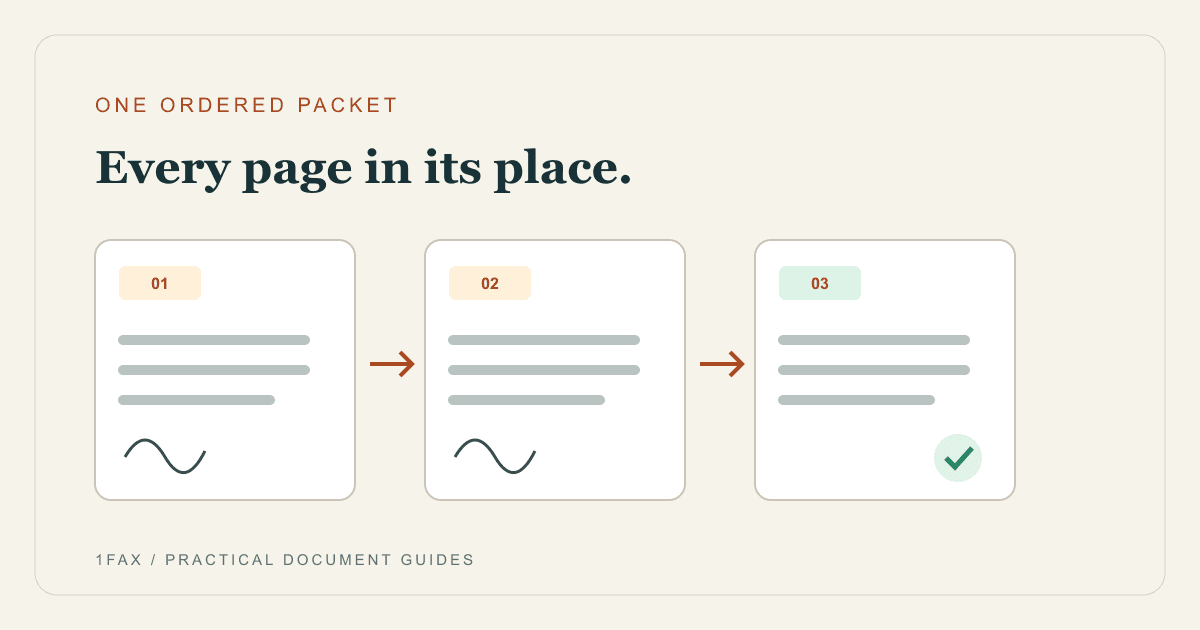
Attach the finished PDF, JPG, or PNG through the 1Fax website, enter the verified fax number and your email, and review the preview. For a multi-page form, confirm that pages appear in sequence and that the detected count matches your packet.
A cover page is optional unless the recipient requires one. It adds another page to the total, so check the amount displayed before sending. Keep sensitive details out of a generic subject or cover message unless they are necessary for the recipient's routing instructions.
Keep the original until the receiver confirms processing
After sending, monitor the delivery result and save the confirmation with your scan. Fax delivery confirms that the receiving system accepted the transmission, not that someone checked every handwritten field or finished processing the request.
If the form matters for a deadline, use the recipient's official contact method to confirm it was matched to the correct request. Retain the paper original according to your own needs and the recipient's instructions. Avoid resending the full packet repeatedly without checking the existing result.
Research notes
Official sources used for this guide
Agency, healthcare, and provider instructions can change. Recheck the linked source and the document in front of you before transmitting.
- 01
Common questions
Frequently asked questions
Can I fax a handwritten document?
A readable scan can be transmitted by fax. Whether the receiving organization accepts that document or signature is a separate question; check its instructions first.
Can I send a photograph of the form?
JPG and PNG uploads are supported, but a carefully cropped document scan is easier to inspect. Make sure the entire page is legible and not distorted by the camera angle.
Do I need a printer or scanner?
You do not need a separate scanner to capture an existing paper form if your phone produces a clear document scan. Whether you need to print a blank form depends on how the recipient requires it to be completed.
In summary
Key takeaway
The useful test is whether someone who has never seen the original can read every required field. Complete the form, make a clear scan, preview the whole packet, and keep both the original and the delivery evidence.